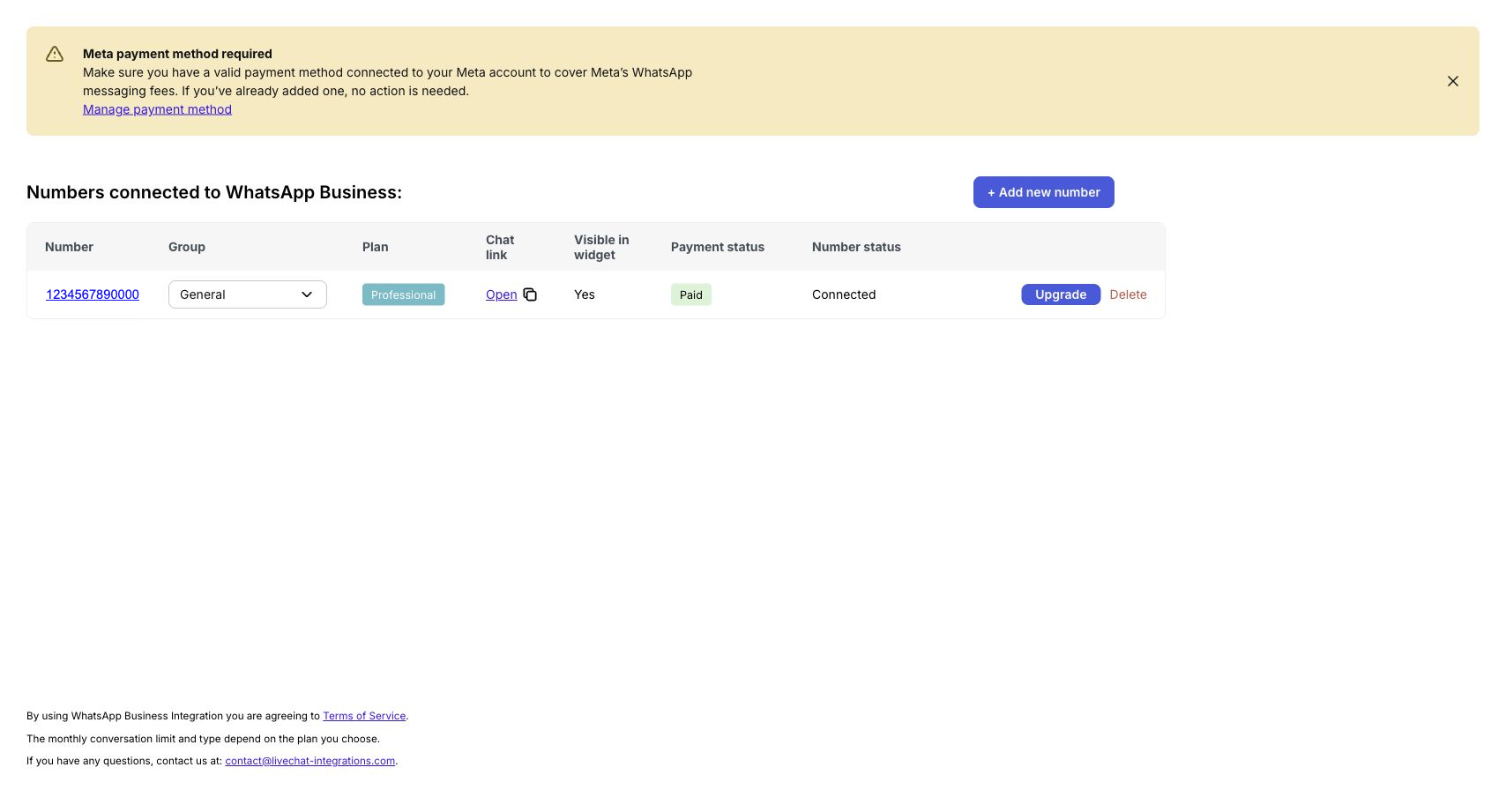
Requirements
To start the migration process, please:
-
verify that you have access to the phone numbers you're migrating, as Meta will send a one-time password to them,
-
ensure that you have access to your Meta Business Account and LiveChat account as an admin on one device,
-
make sure that your business on Meta is verified; if not, then go through the business verification process,
-
turn off two-step verification for your WhatsApp Business numbers,
-
if your business uses IVR, you will need to pause it for the migration since you won’t be able to verify your phone number.
Turning off two-step verification
Open your Meta Business Account. Go to WhatsApp Accounts (in the menu under the Accounts section).
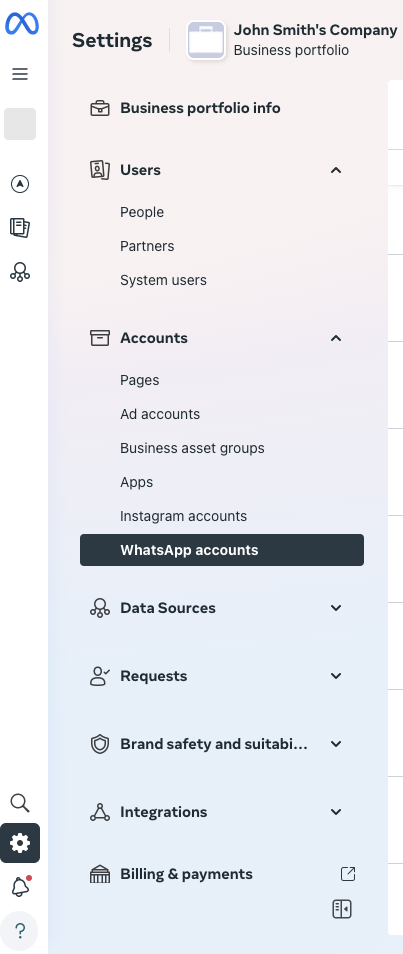
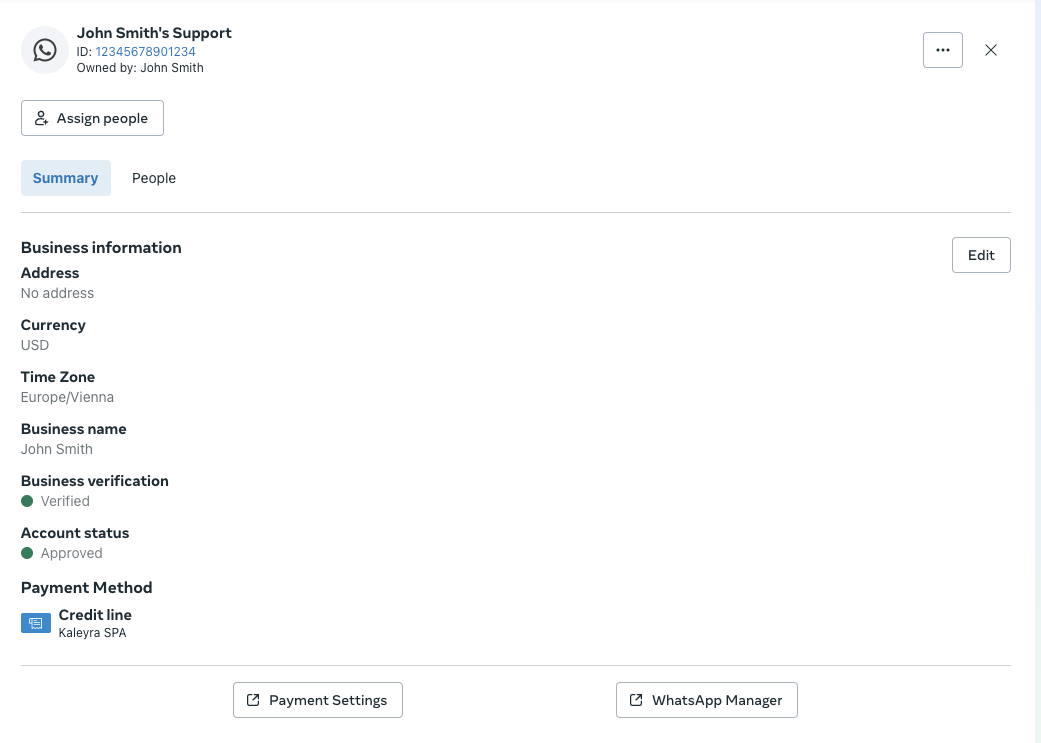
Choose your WhatsApp Business Account, and click the WhatsApp Manager button (at the bottom).
Click the gear icon next to your phone number.

Select the Two-step verification tab and turn it off.
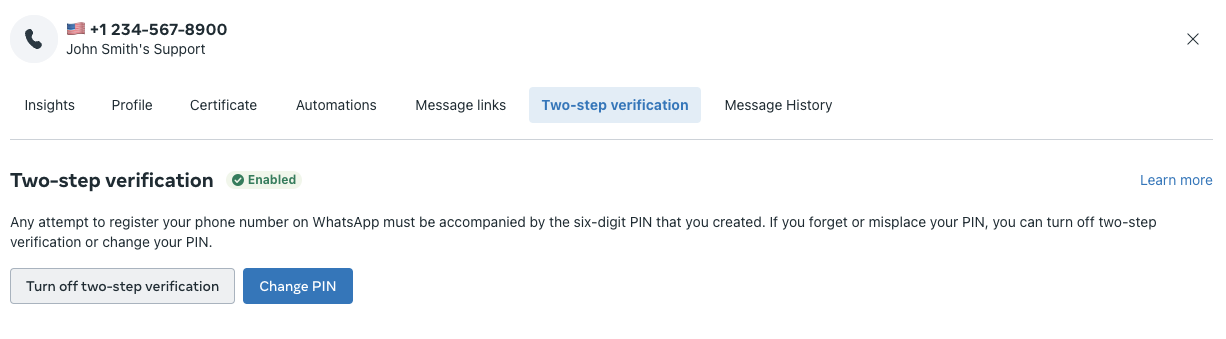
Check your email for further instructions, then check the Two-factor verification tab again to confirm it’s turned off (you may need to refresh the page).
If the email isn’t verified
If your email isn't verified, return to your Meta Business Account and click Business Portfolio Info.
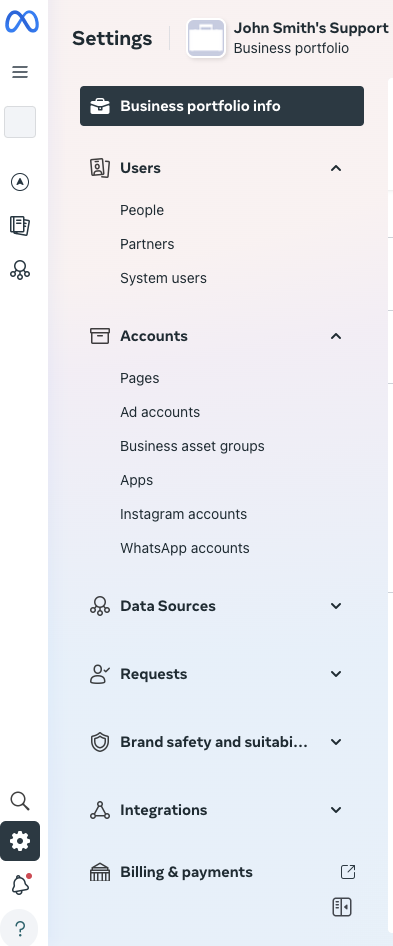
Scroll to the email section and click Resend verification email. Then, return to turning off two-step verification.
Migrating the number
Then go to your WhatsApp Business dashboard in LiveChat and select the Migrate number button on the right side of the number row.
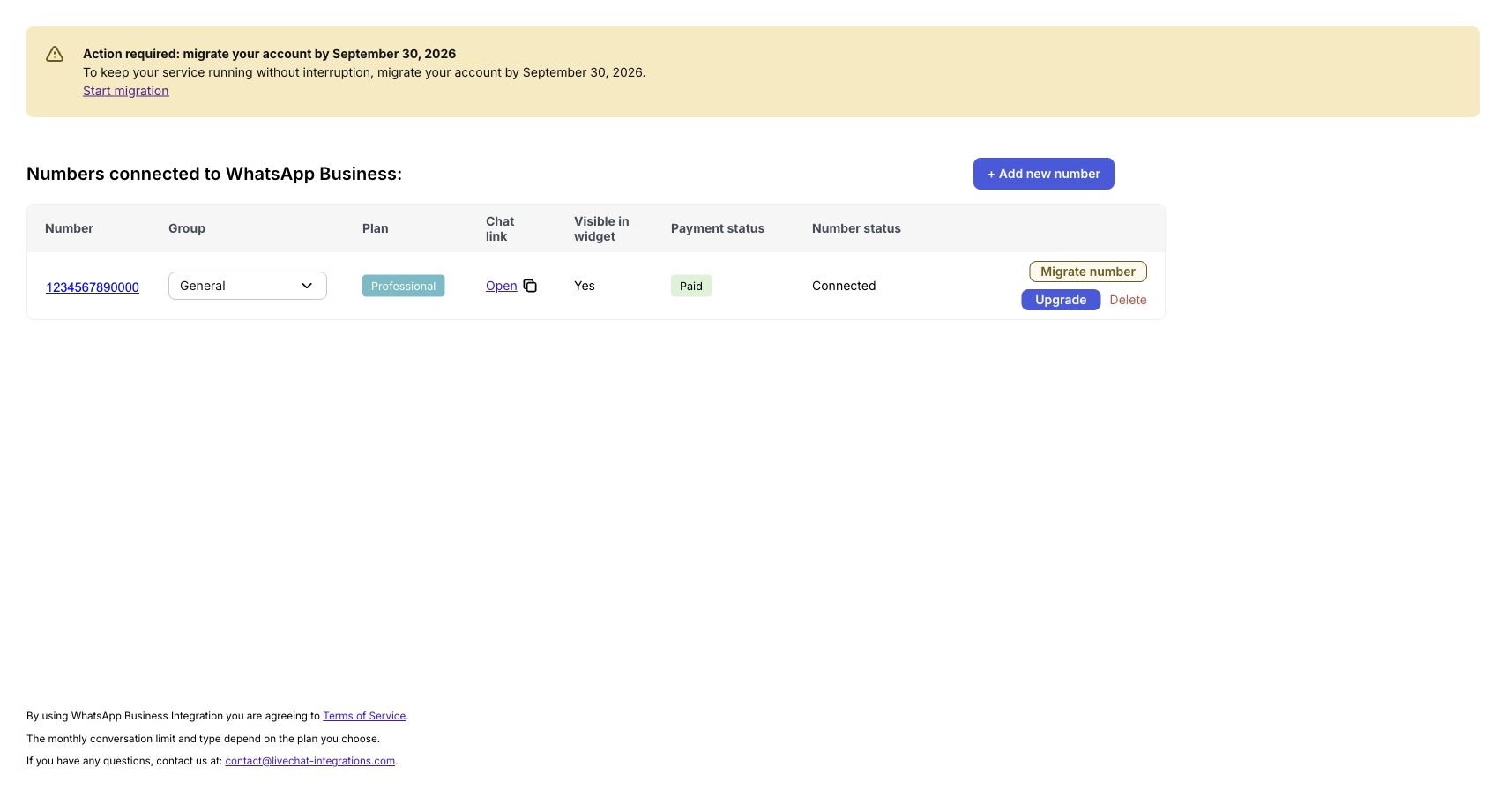
Meta Wizard pop-up and authorization
A pop-up with the Meta Wizard will appear on your screen. If the Facebook profile is correct, click the Continue as... button. If not, click Log in to another account and follow the next steps.
After logging in, you will see what permissions you need to share with LiveChat Integrations to integrate WhatsApp Business. Click on the Get started button to continue.
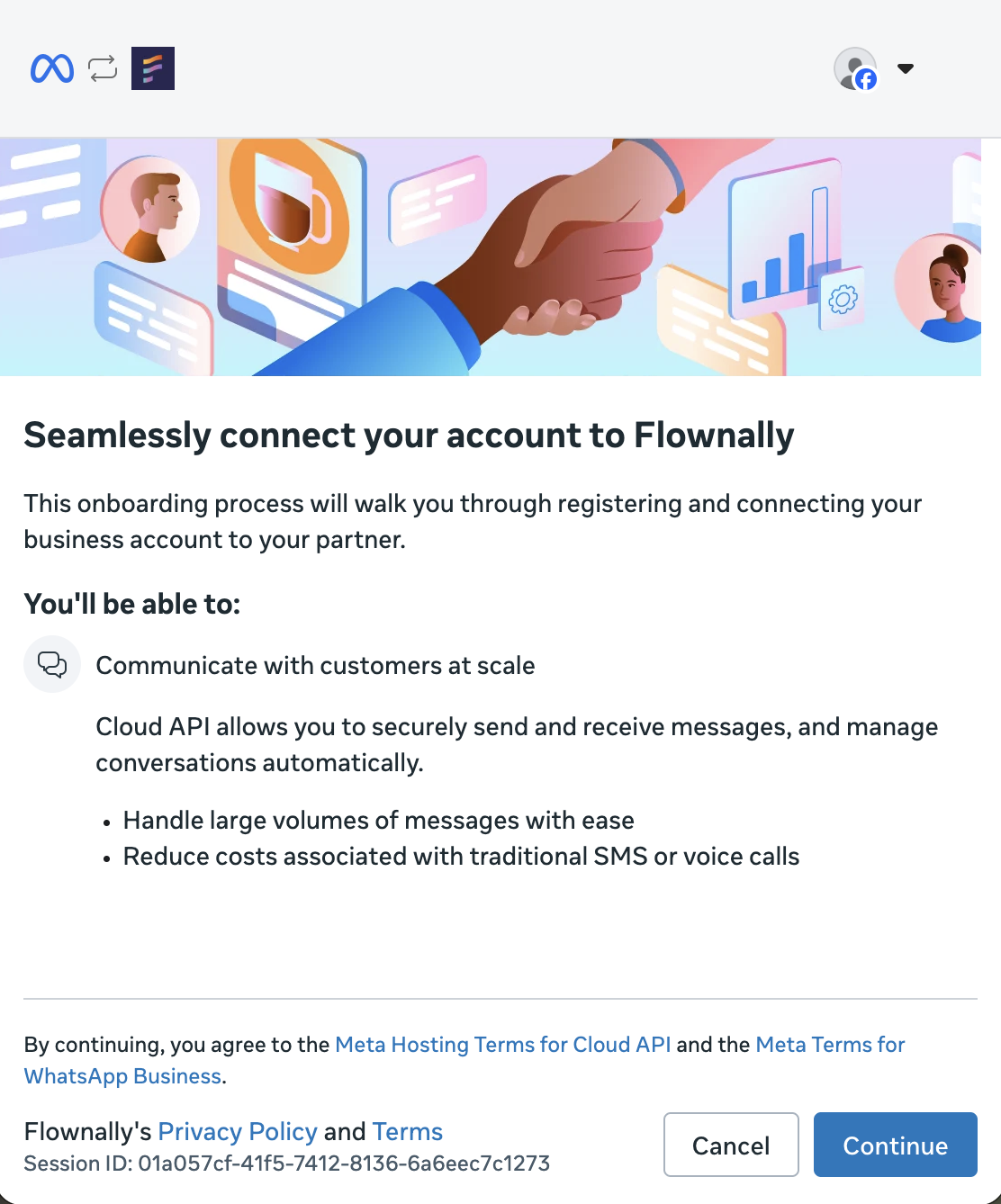
Providing phone number and OTP
Enter the phone number you want to migrate. Click Next.
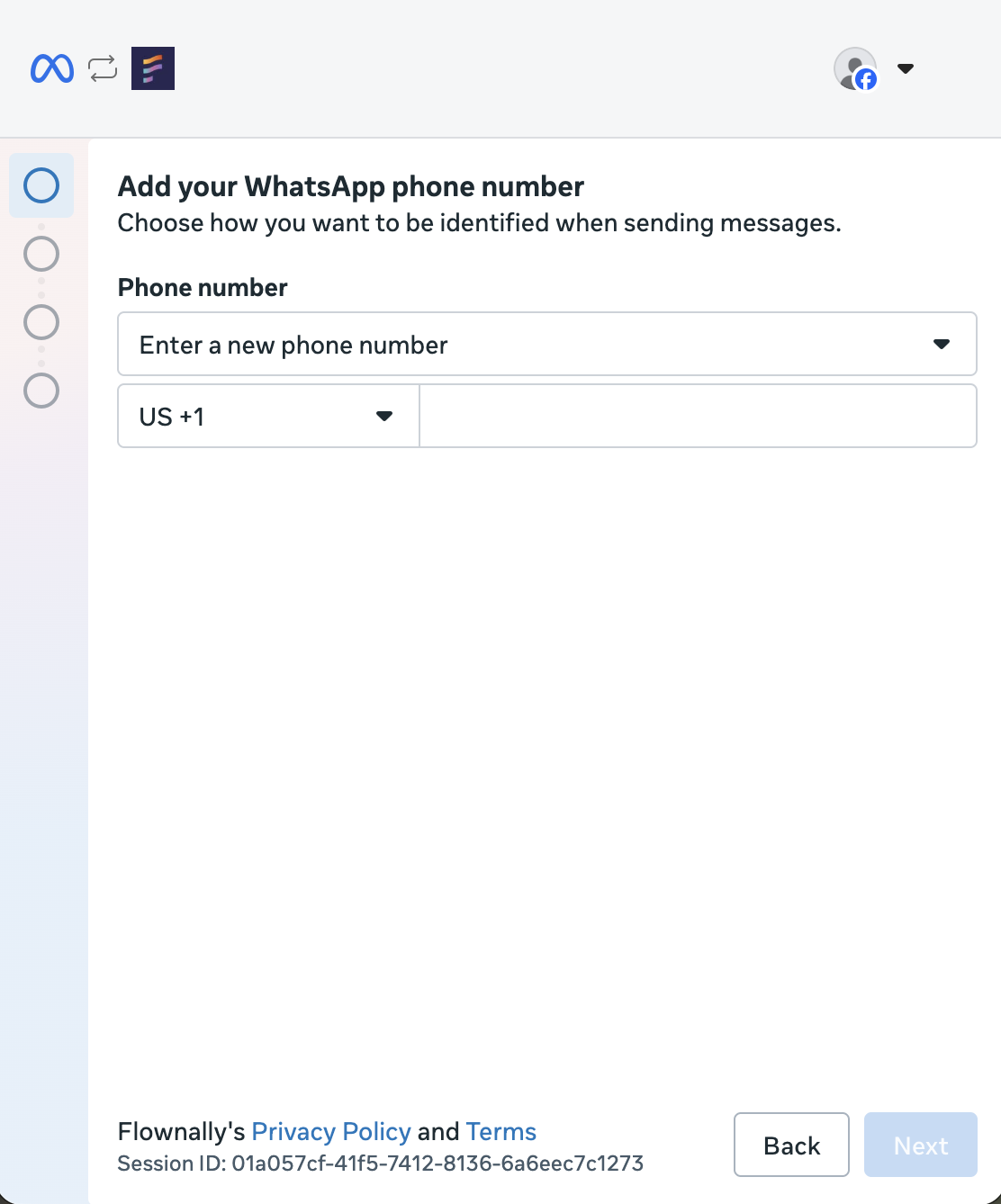
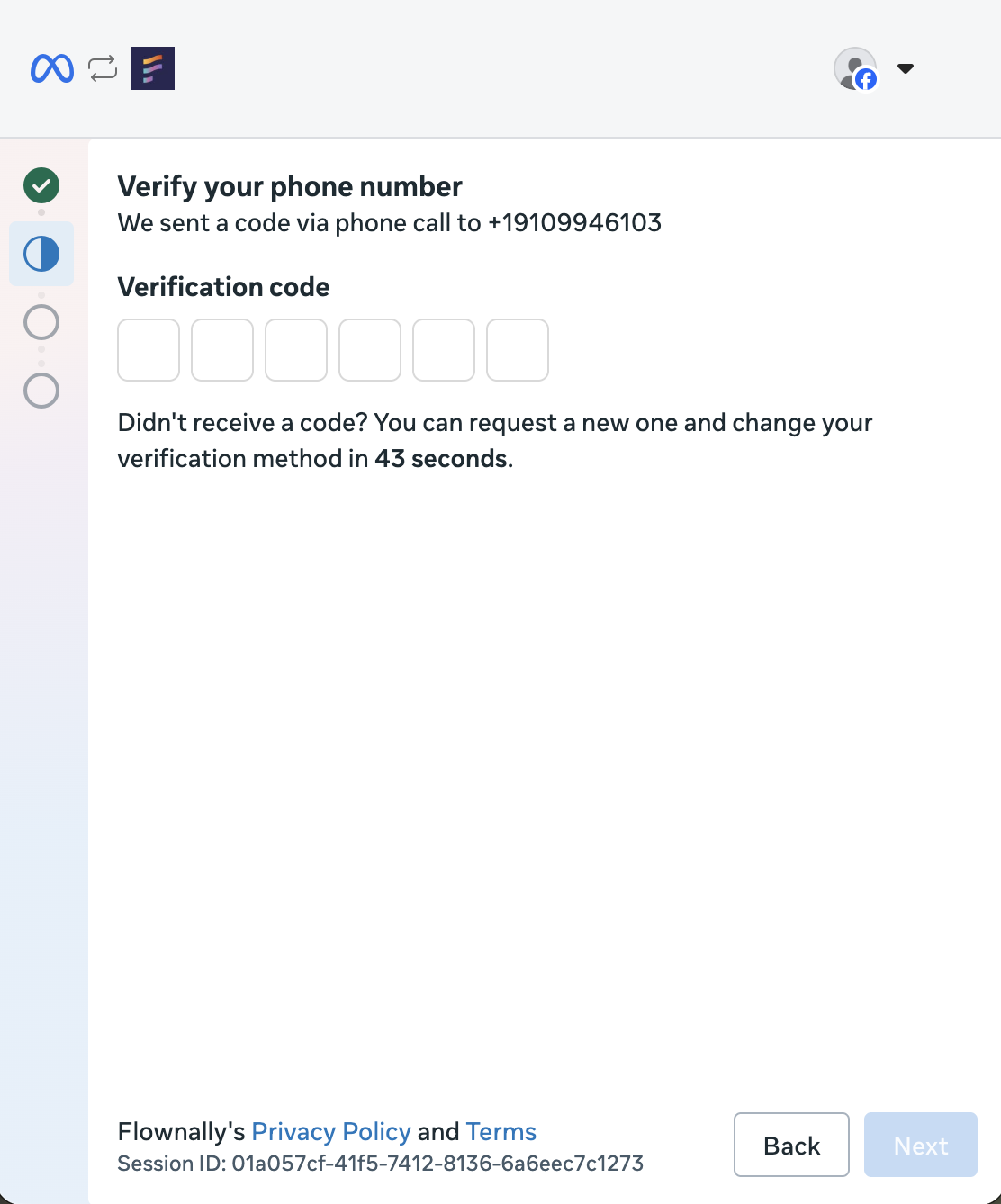
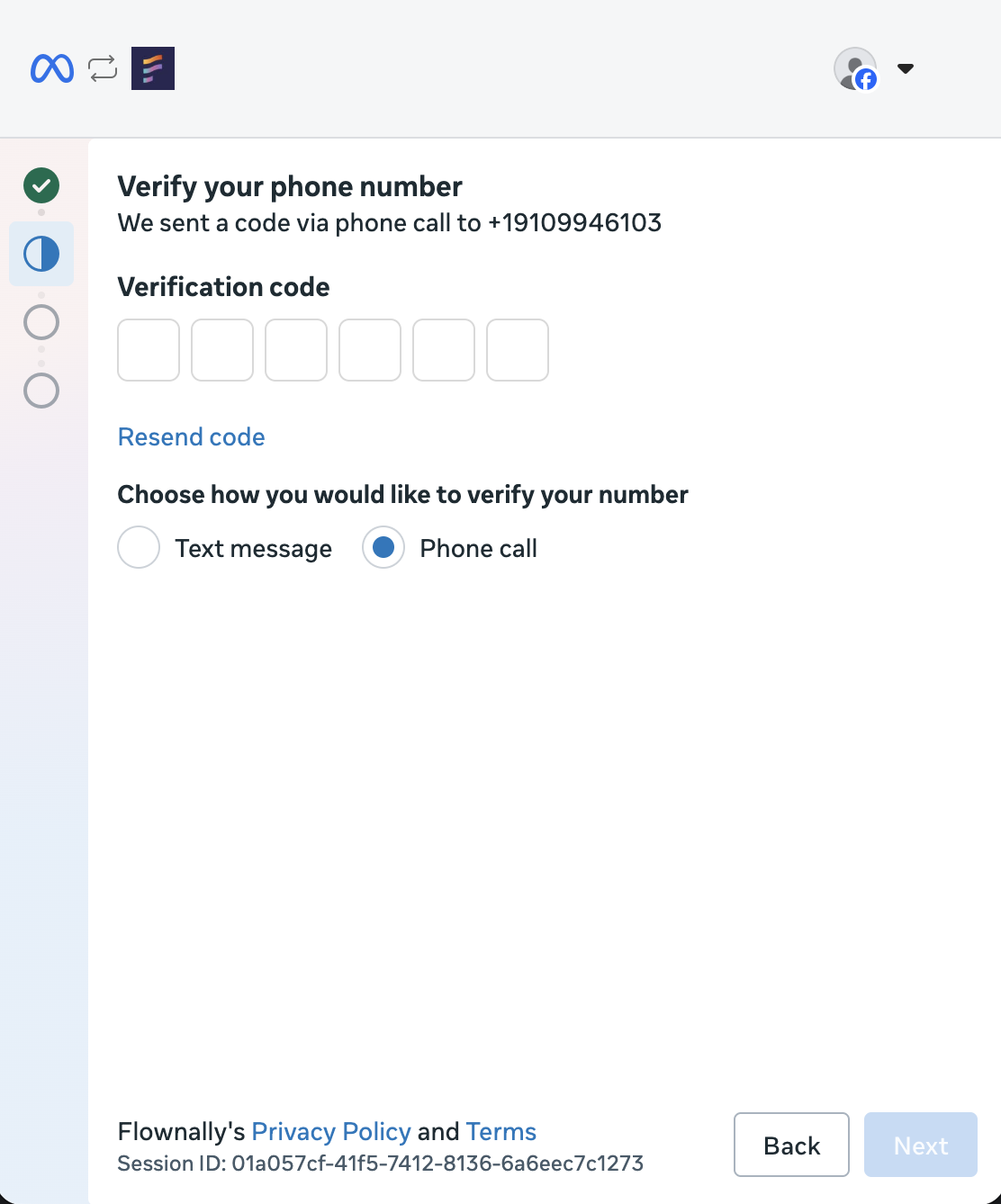
The One-Time Password (OTP) will be sent automatically as a text message. If you cannot receive a text message, you will need to wait for the option to resend the code and choose the Phone call option. Provide the code and then click Next.
Filling out data
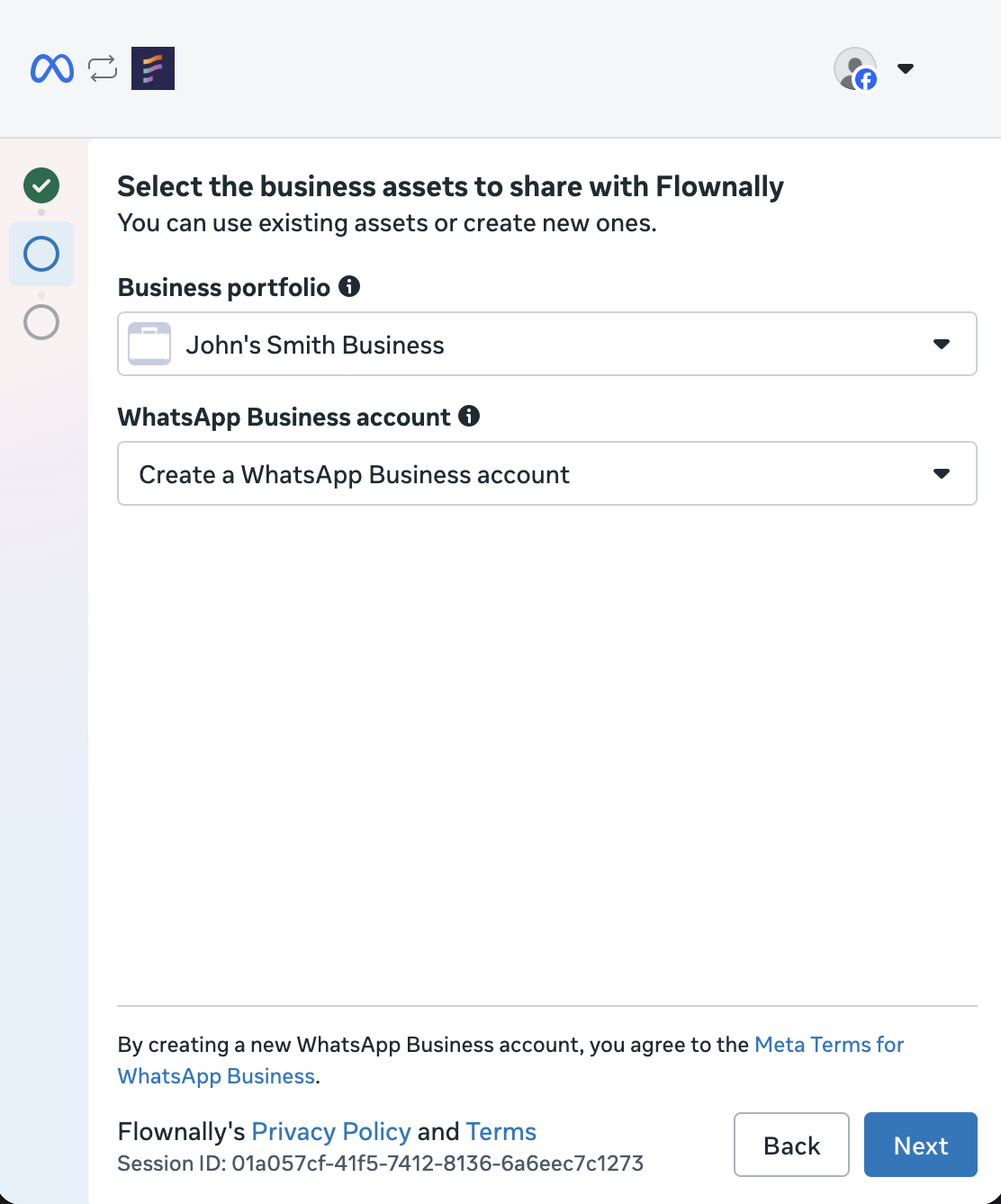
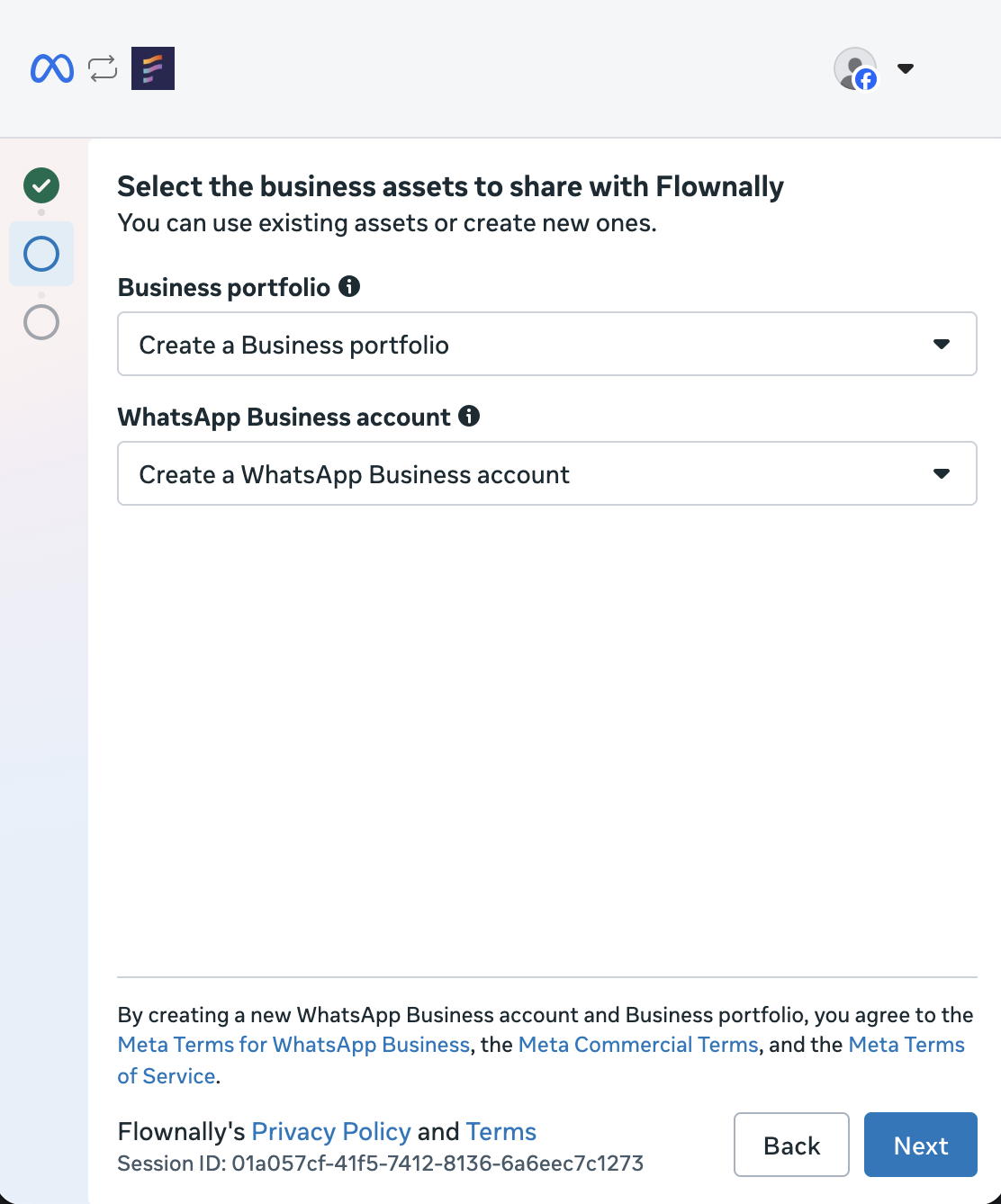
Next, choose your Meta Business Portfolio and create a new WhatsApp Business Account. If you choose to create any of these assets, you’ll see a form in the next step.
Creating a Meta Business Portfolio also creates a WhatsApp Business Account with the same data.
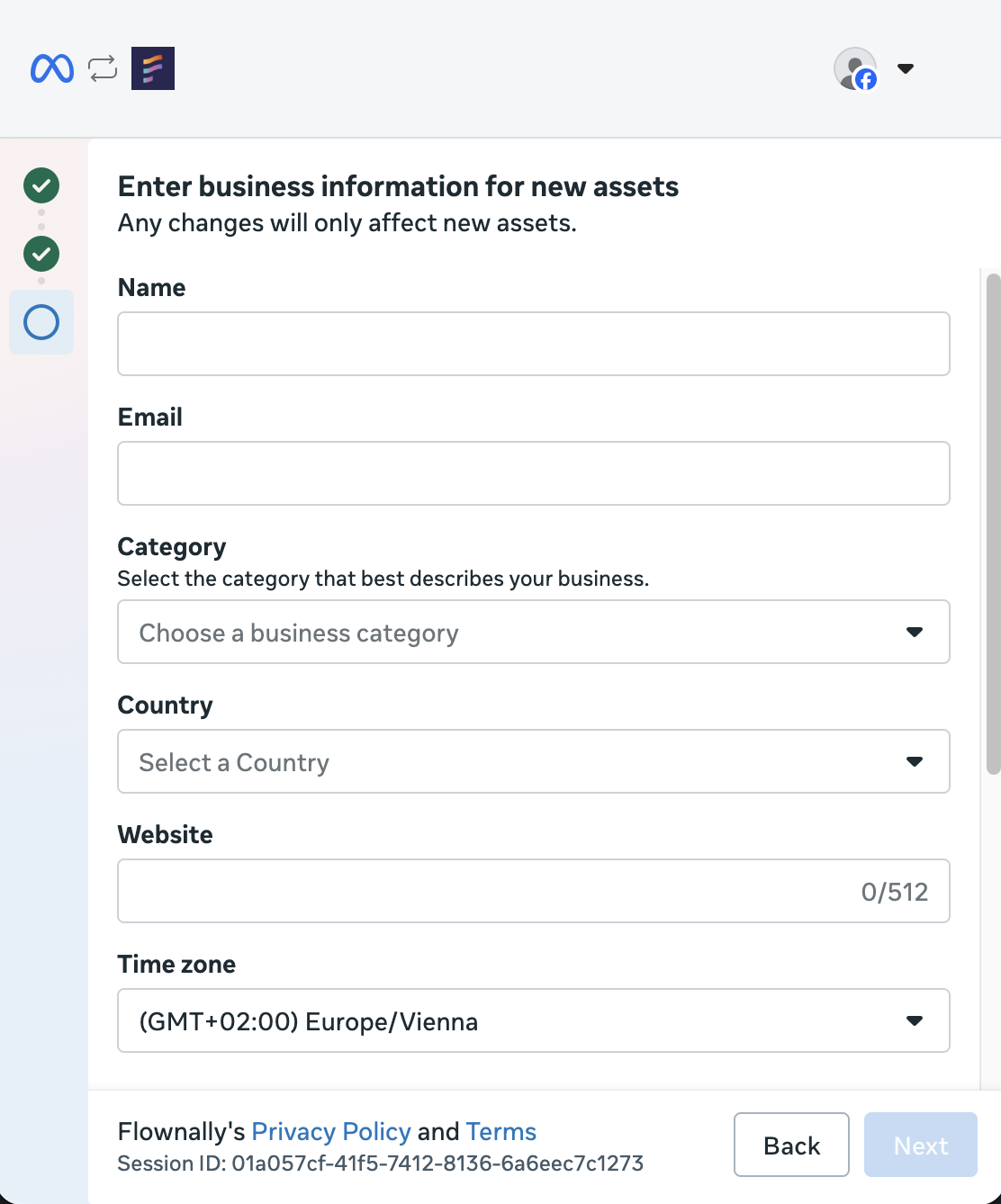
In this step, you need to fill out the data for your assets. This screen may differ depending on the assets you’ve chosen to create. You need to enter your asset's name, email, category, country, website, timezone, catalog vertical, and optionally a description. When it’s completed, click the Next button.
The name you choose will appear as your WhatsApp display name for this number and can be changed later in Meta settings.
Finishing installation
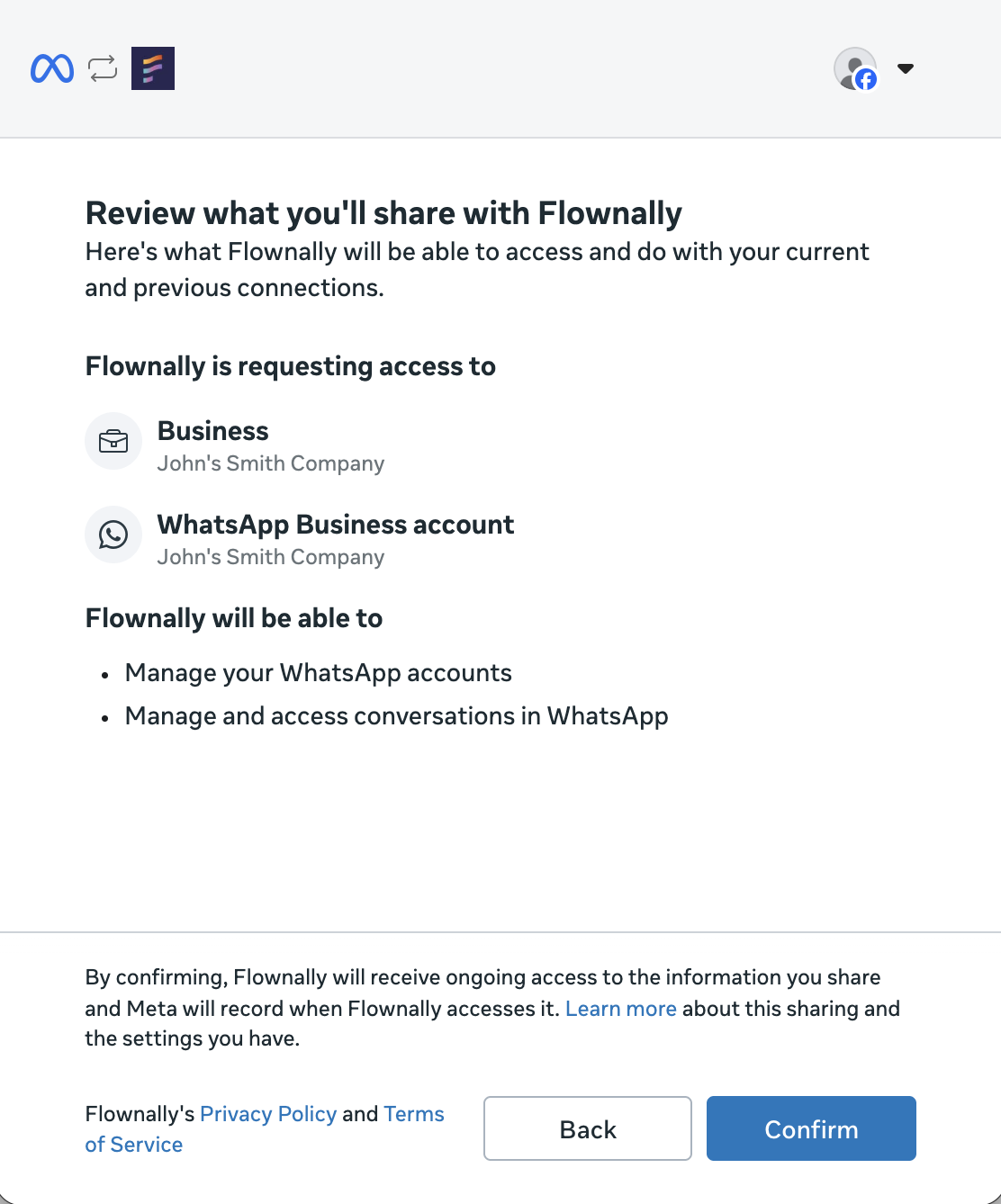
After that, you will see the permissions necessary for the new provider, Flownally. To continue, click Continue.
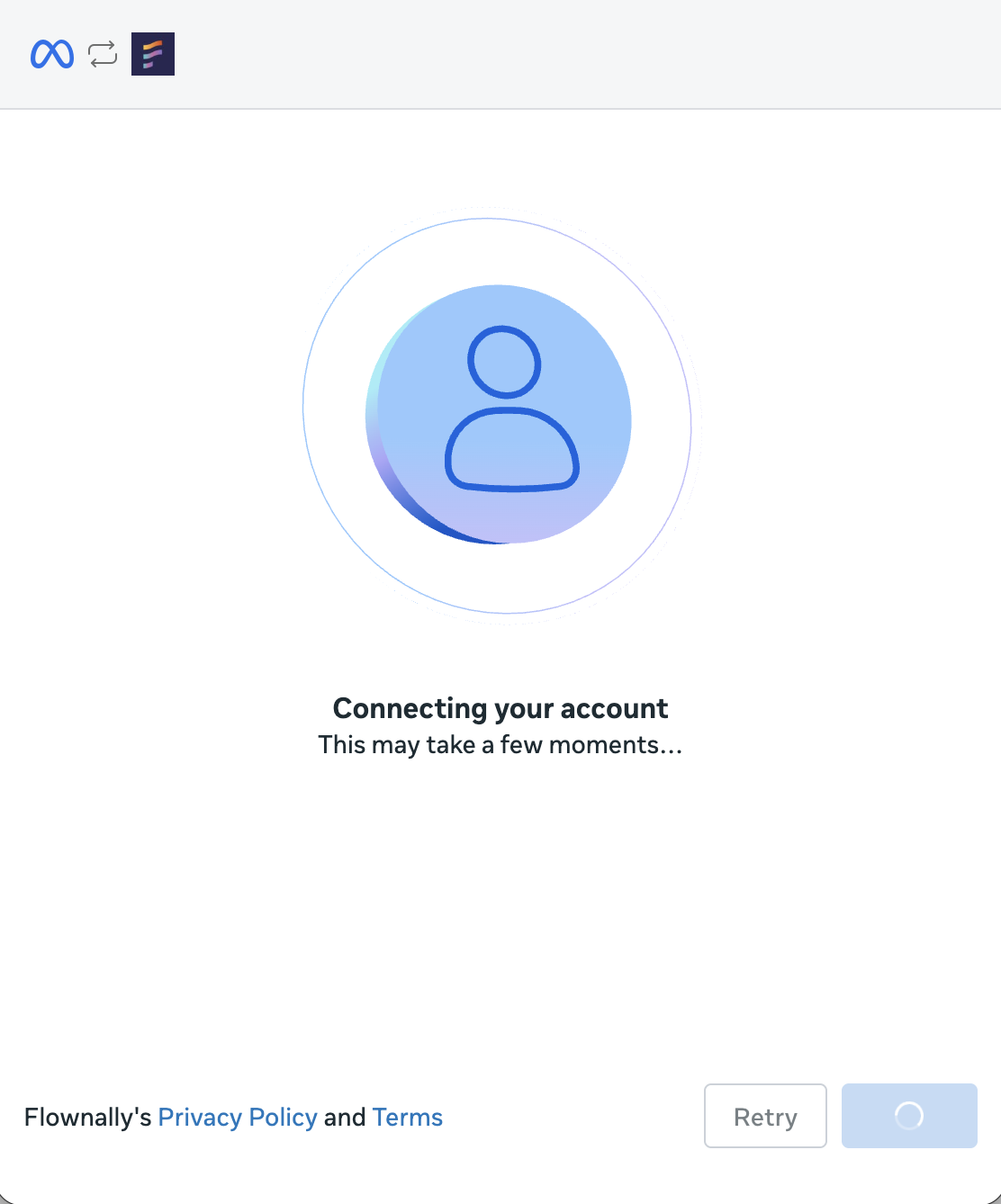
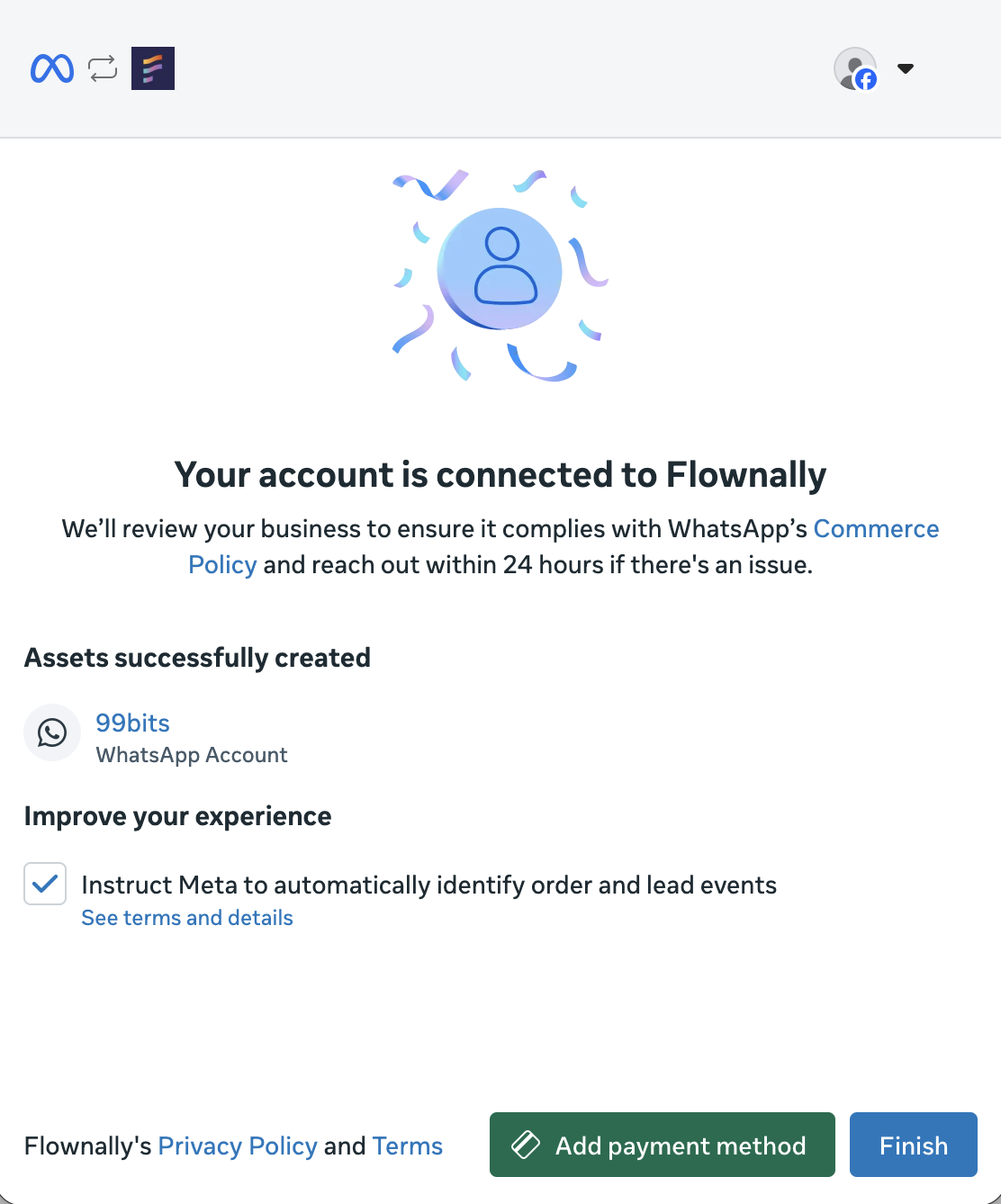
In the last step, you need to wait a few minutes, and then the final screen will appear that says you’re ready. Click Add payment method to add it to your new WhatsApp Business account in Meta now, or click Finish to finish adding your number.
You need to add a payment method to your WhatsApp Business Account in Meta to migrate the phone number.
If you add the payment method later, you will need to go through the onboarding process again, choosing the same phone number and WhatsApp Business account (if prompted), with your credit card already added as a payment method.
Successful migration
After successful migration, the Migrate number button on the right of the number row will disappear.