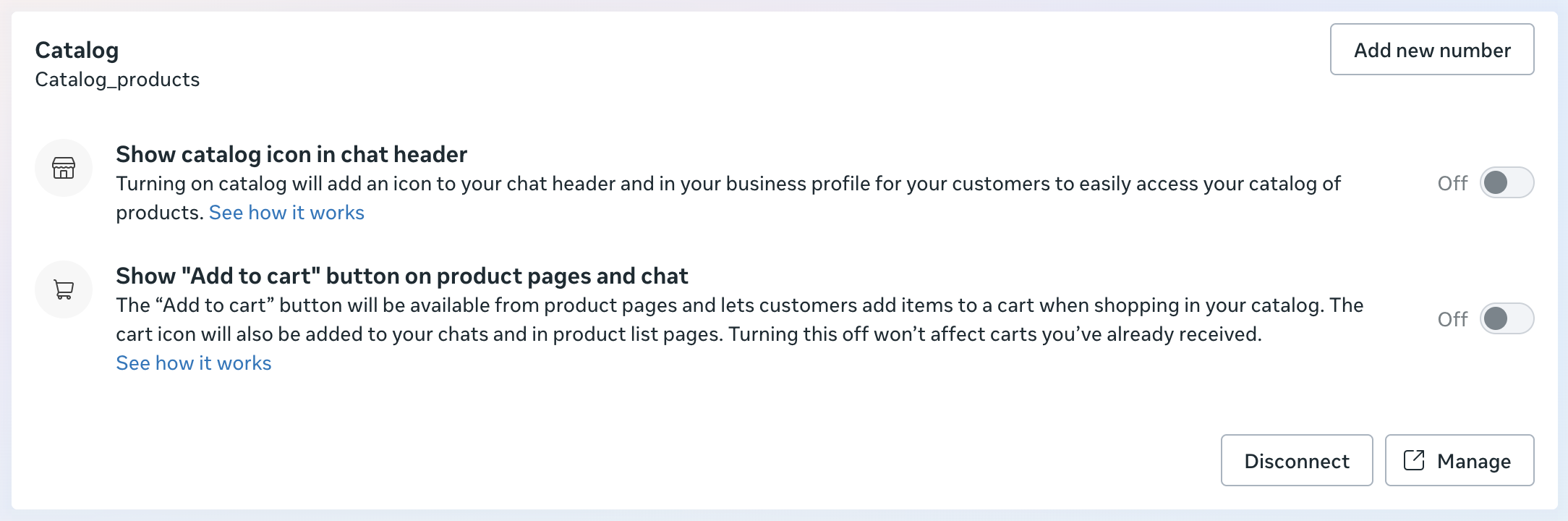
To add a product catalog to WhatsApp Business, create it first in Meta Commerce Manager. You can also create a new catalog when onboarding a number and edit it later in Commerce Manager.
Creating product catalog
Open the Commerce Manager from your Meta Business Suite. Click on Add products.

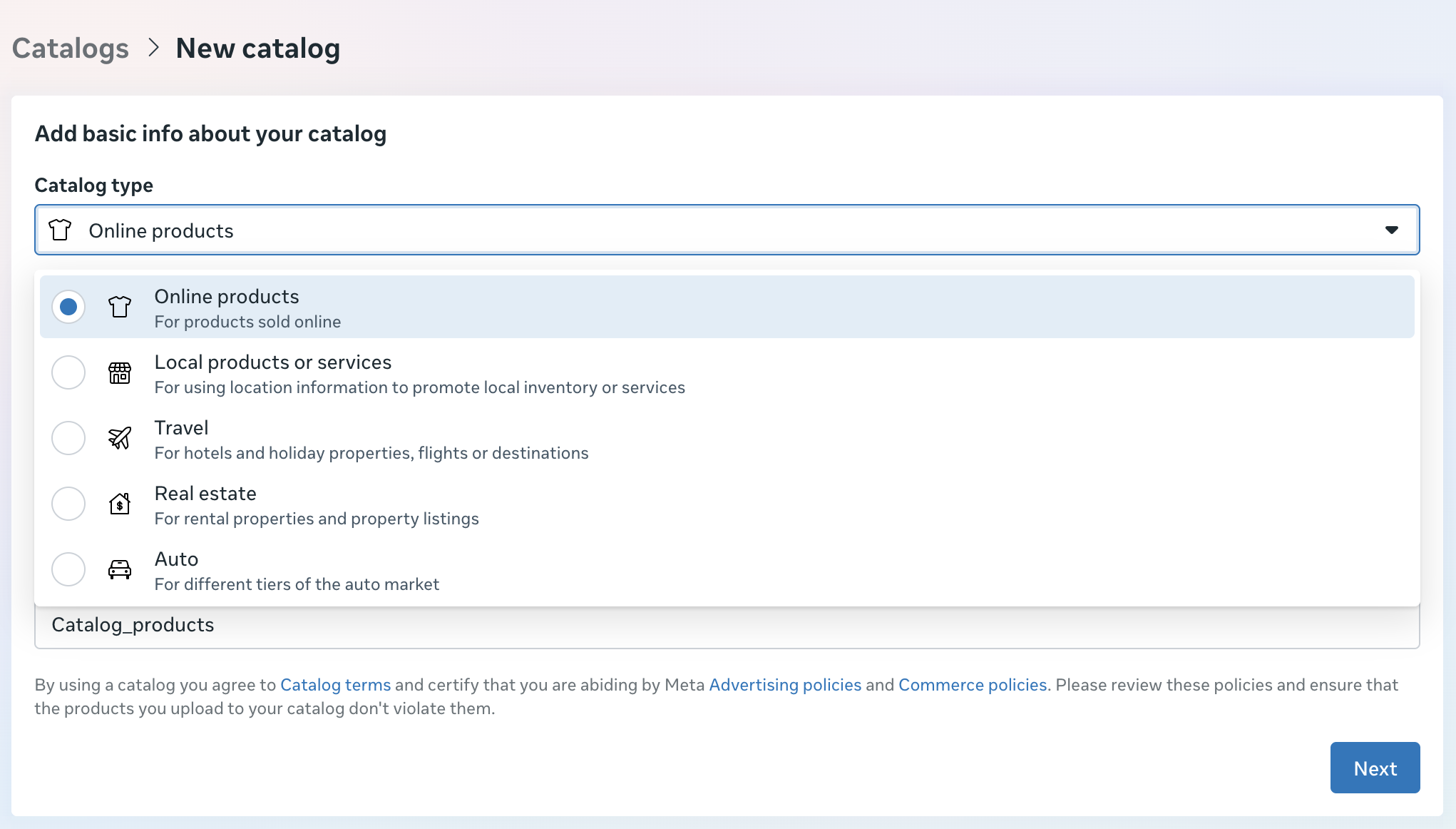
Choose the catalog type and whether you want to get it from the partner platform or not.
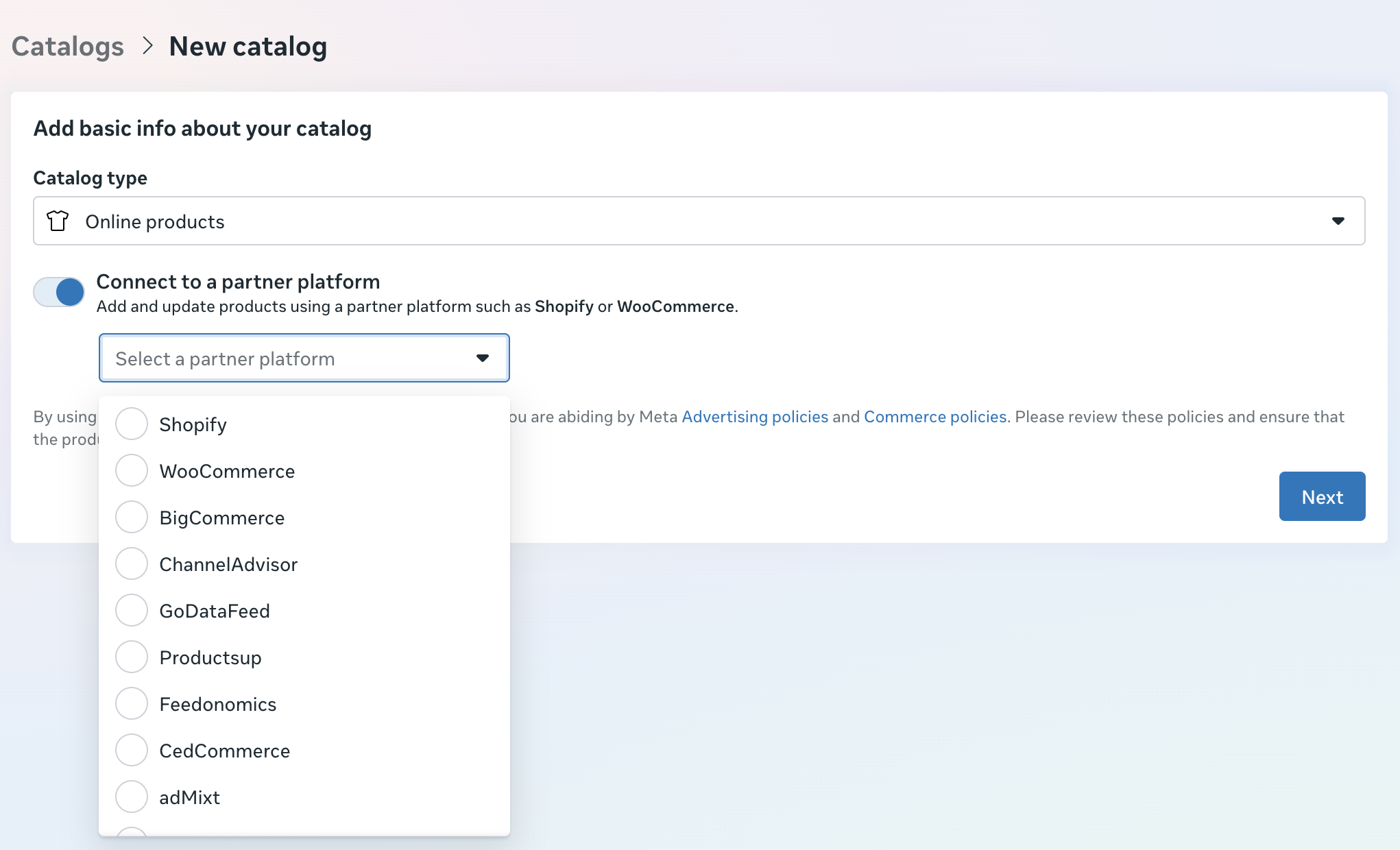
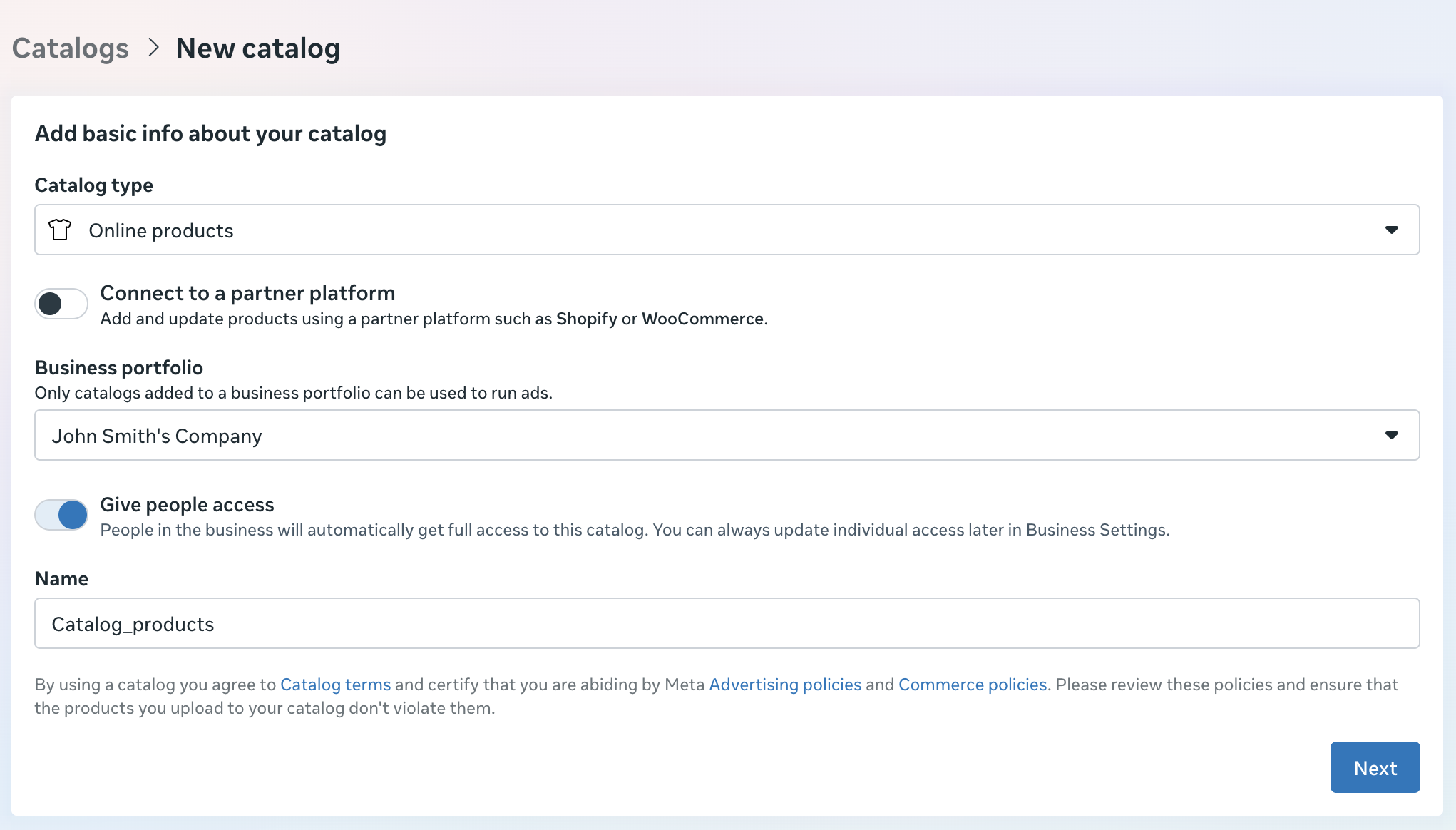
If you don’t choose the partner platform, you will need to select the business portfolio where you want the catalog to be saved and provide a name for it.
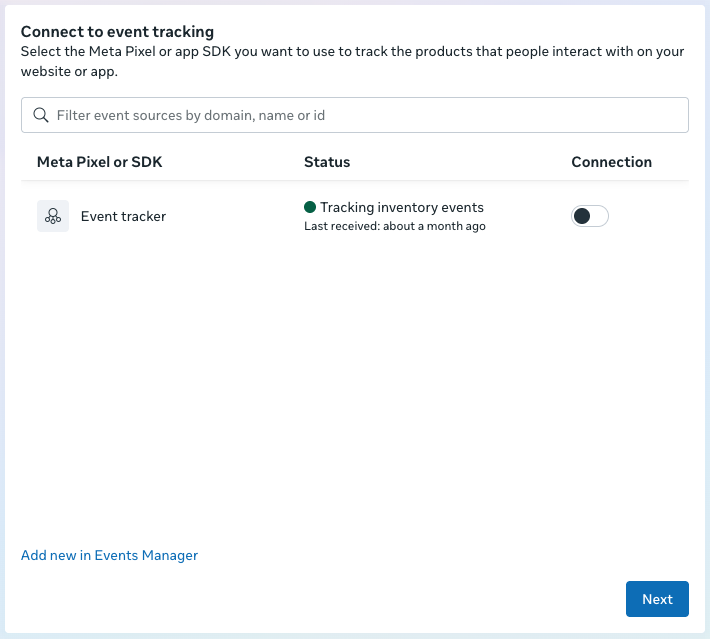
The next step is to choose an event tracking app. You can skip it if there’s no app to choose from or if you don’t want to use it.
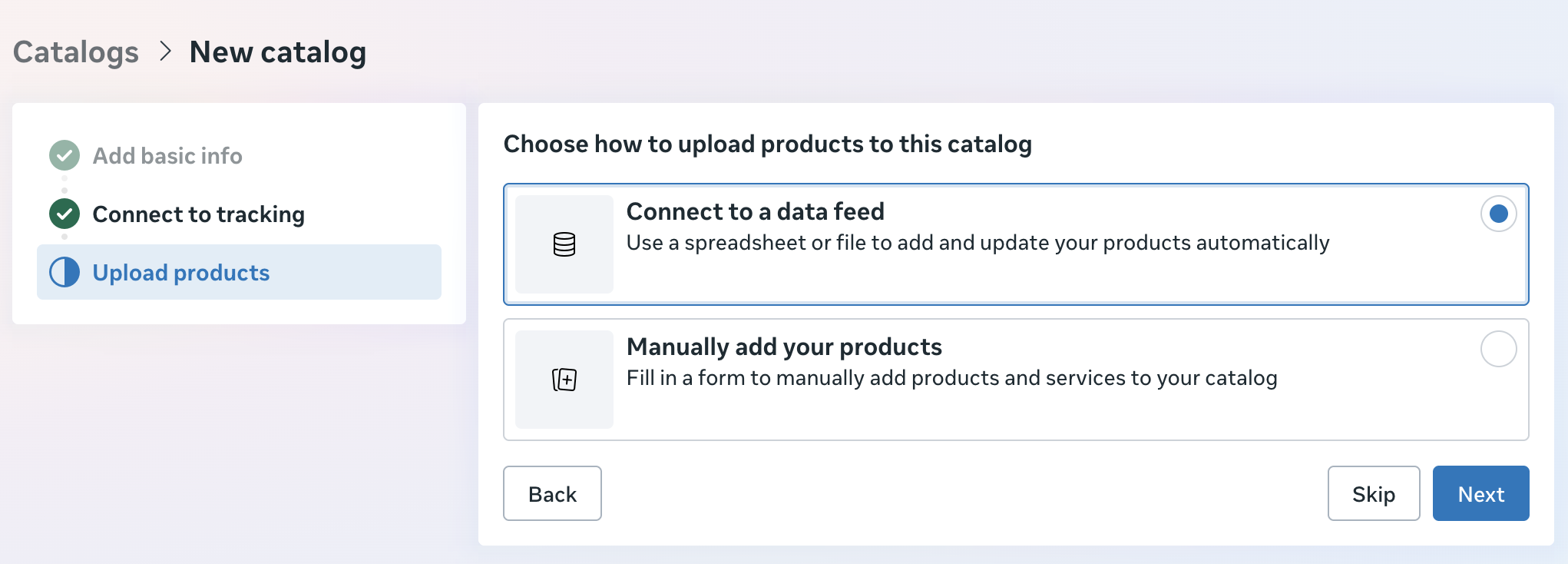
The last step is also optional, and you can skip it. It allows you to choose if you want to either upload your products from a file or add them manually.
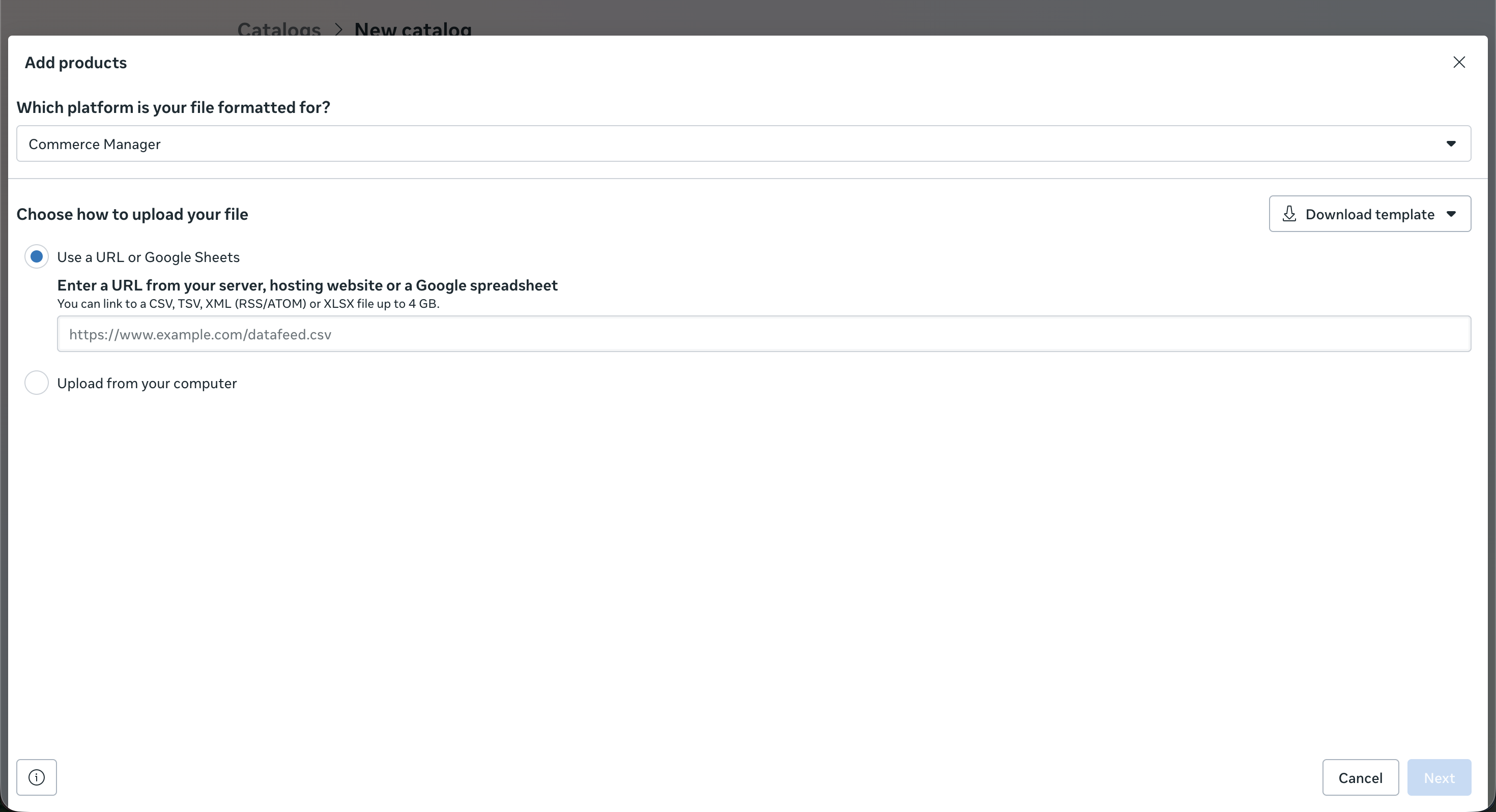
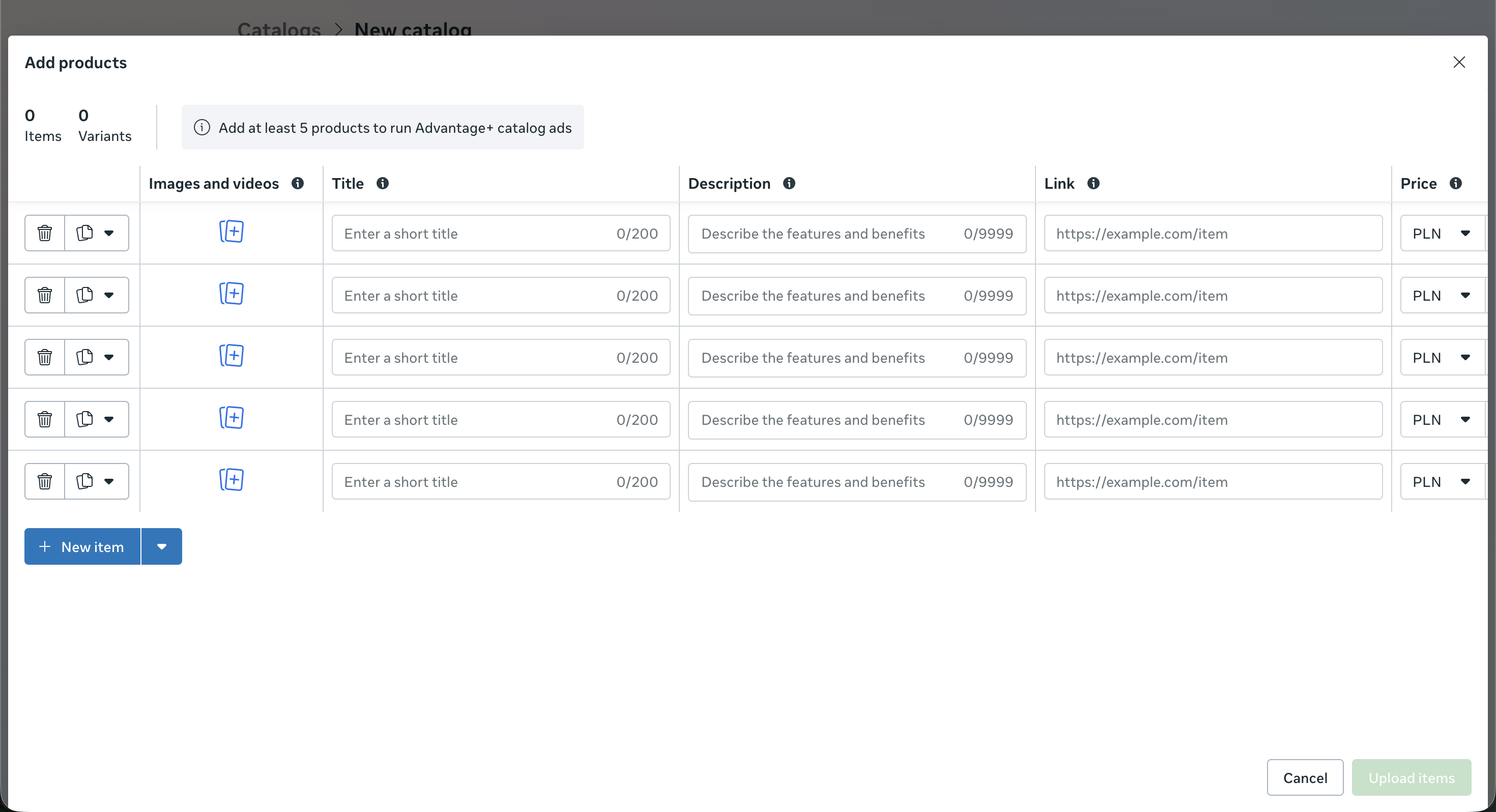
If you don't skip this, you'll see either the file upload tool or a window that allows you to manually add each product.
Connecting the catalog with the WhatsApp Business Account
The next step is to connect the new catalog with the desired WhatsApp Business Account.
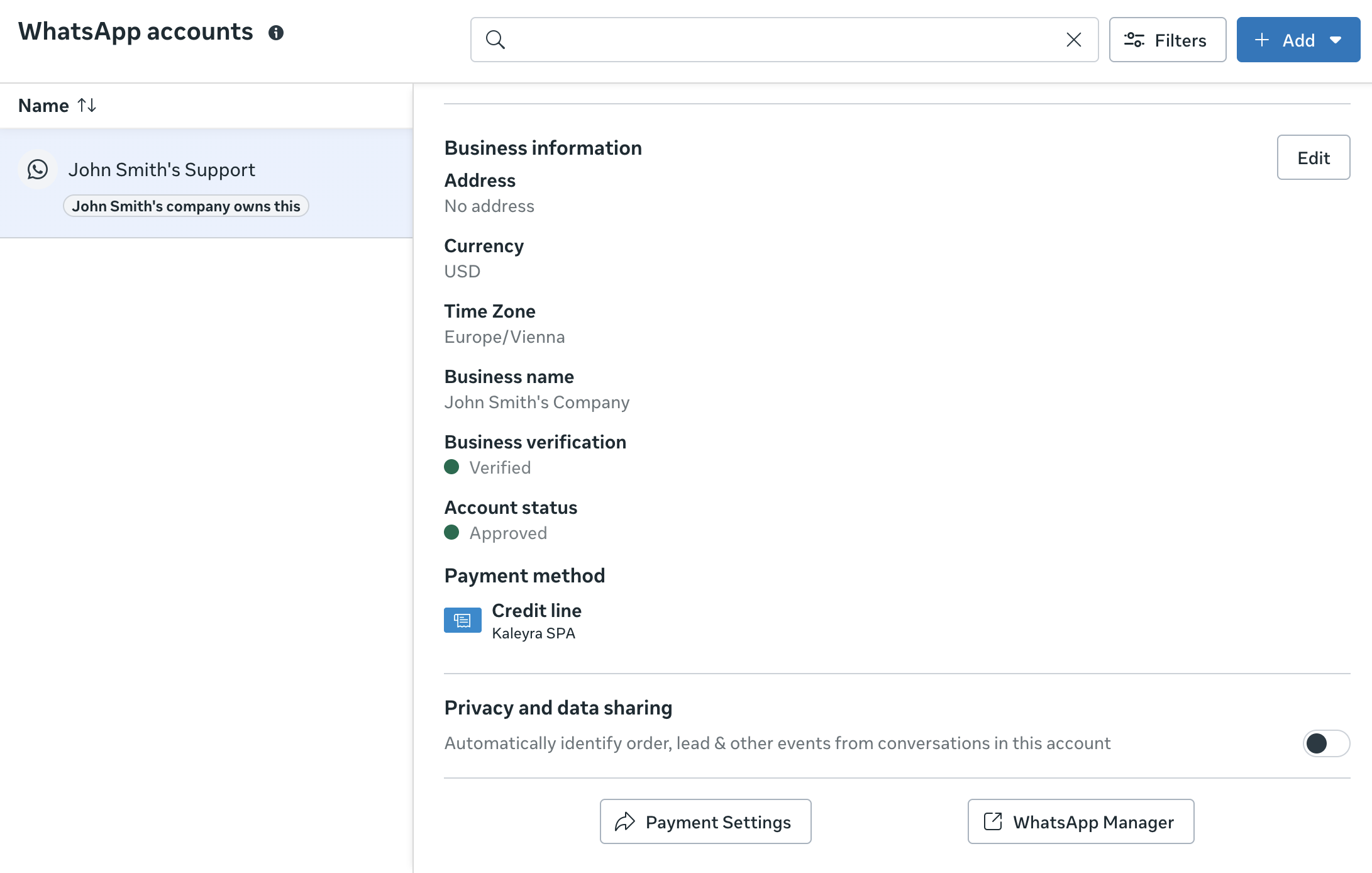
To do that, go to the WhatsApp accounts section in your Meta Business Suite and choose the desired one. Click on the WhatsApp Manager at the bottom of the screen.
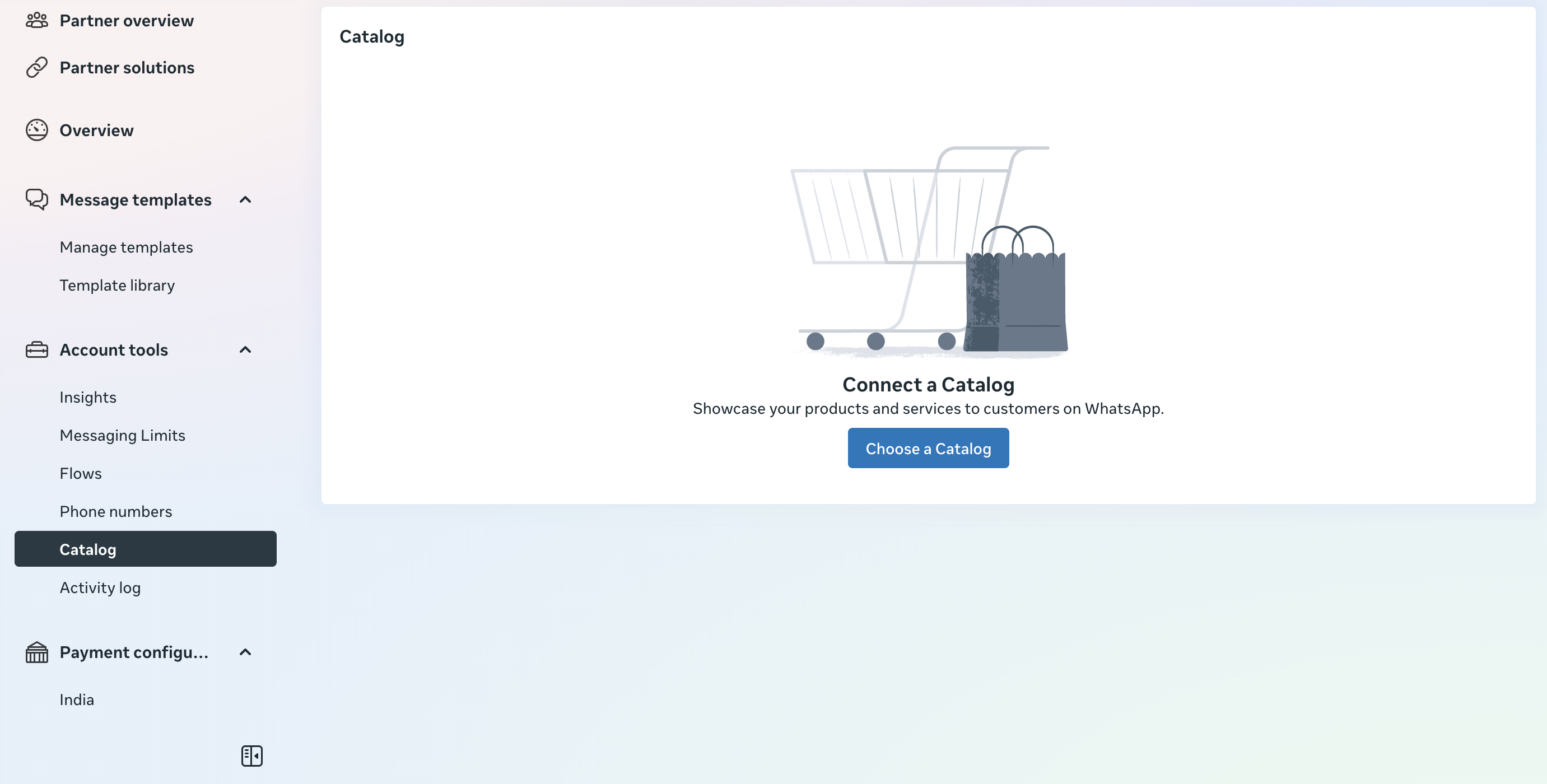
After opening the WhatsApp Manager, click on the Catalog section on the left bar and then Choose a Catalog button.
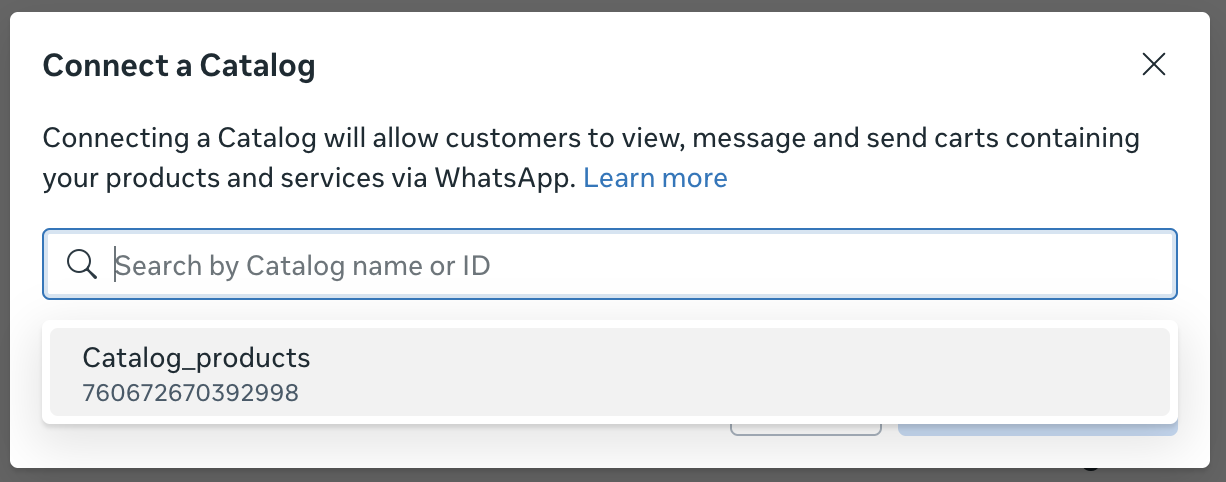
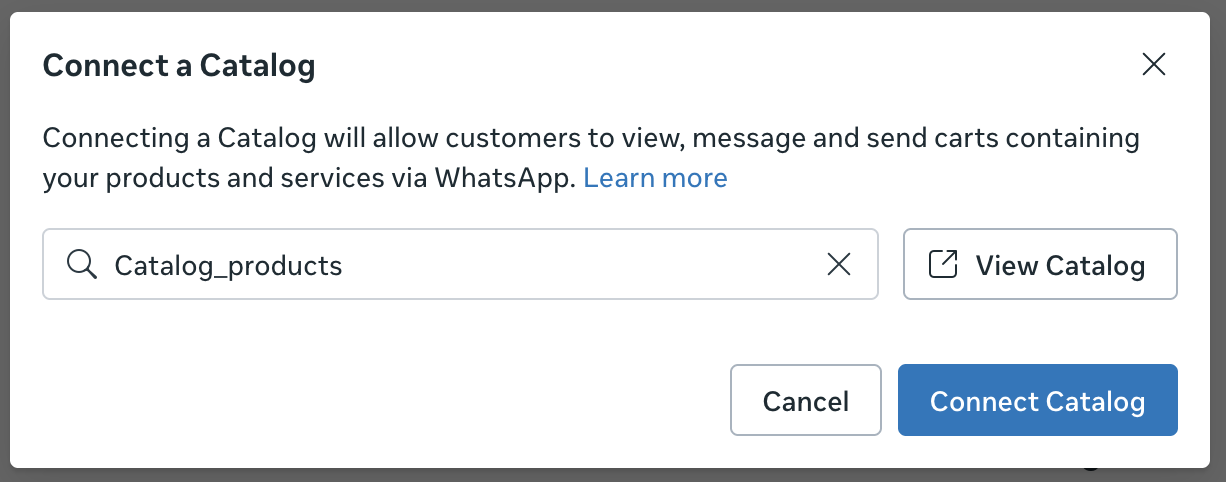
Choose a catalog from your list and click on Connect Catalog.
You will see the catalog in the list. You can turn on the catalog icon and the “add to cart” button from here.