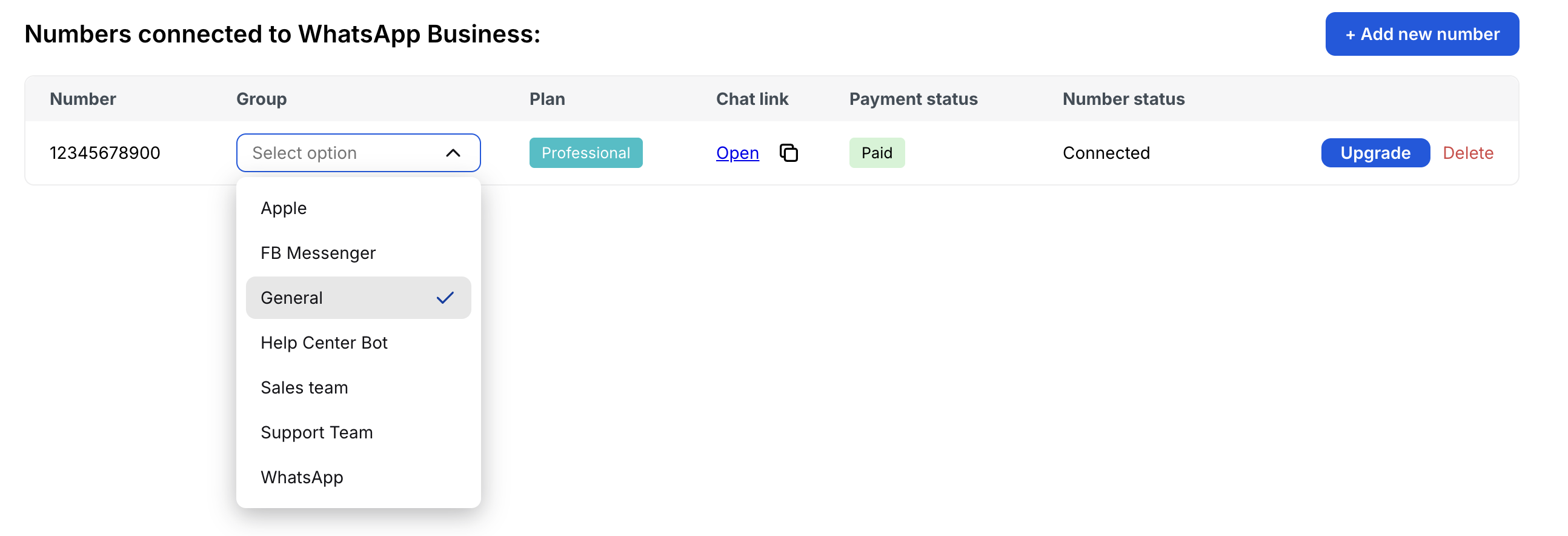
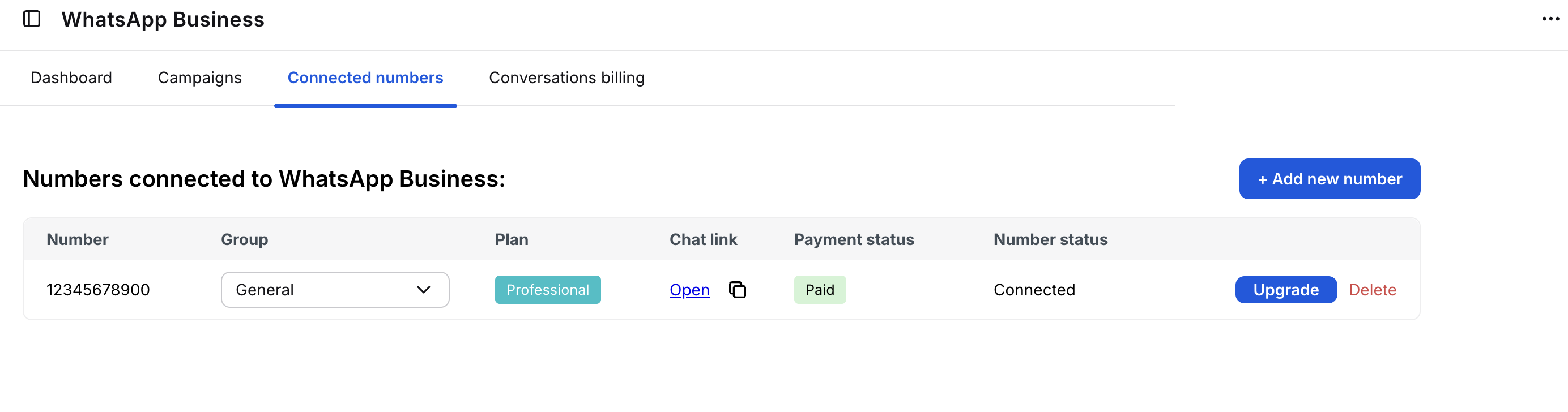
By clicking on the Connected numbers subtab in the WhatsApp Business tab in LiveChat, you can manage your numbers and plans, change the chatting group, upgrade plans, and more.
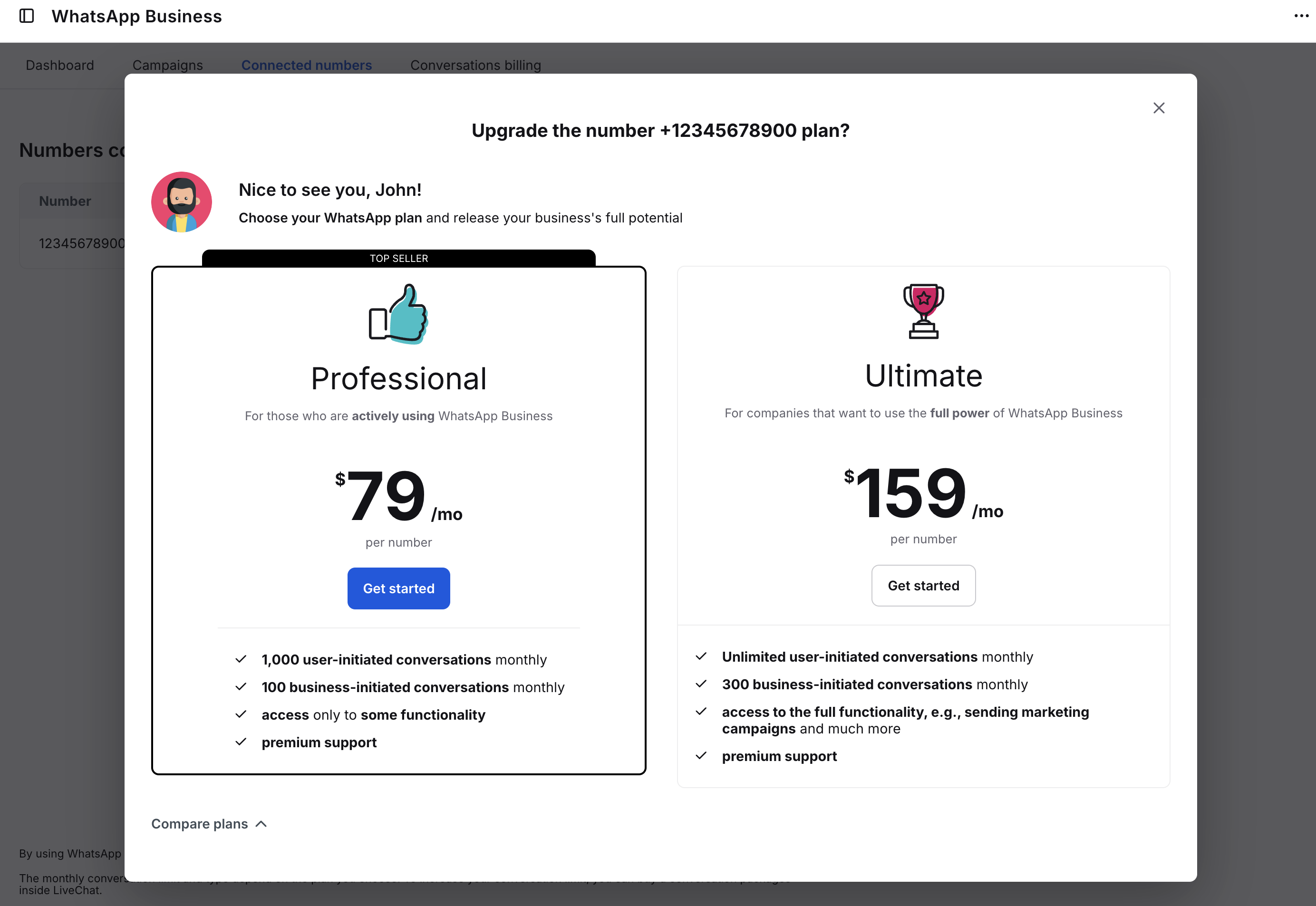
Upgrading plan
Clicking on the upgrade button displays the two remaining plans for you to choose.
Adding more numbers
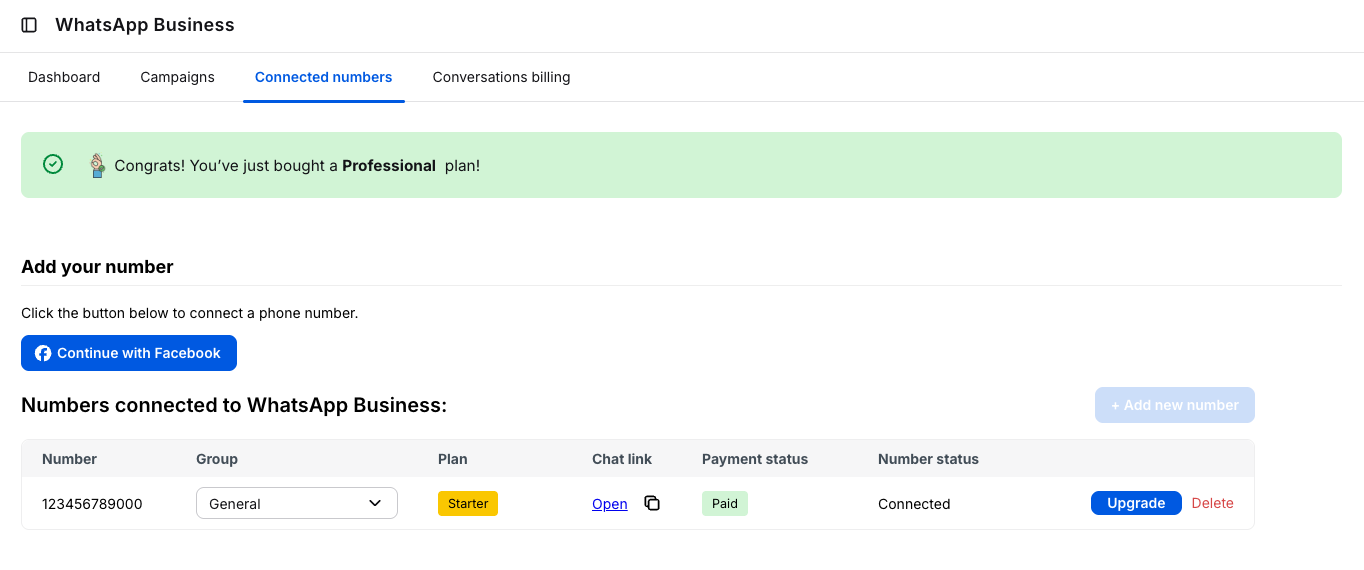
If you consider adding the second number to LiveChat, please choose +Add a new number at the top right-hand side.
After confirming payment of a new plan, the Connect with Facebook button will appear. Click on it to start adding a number in the Meta Wizard pop-up. When you confirm the OTP code, your new number will be added.
Removing number
Clicking the delete button redirects you to your Meta WhatsApp profile.
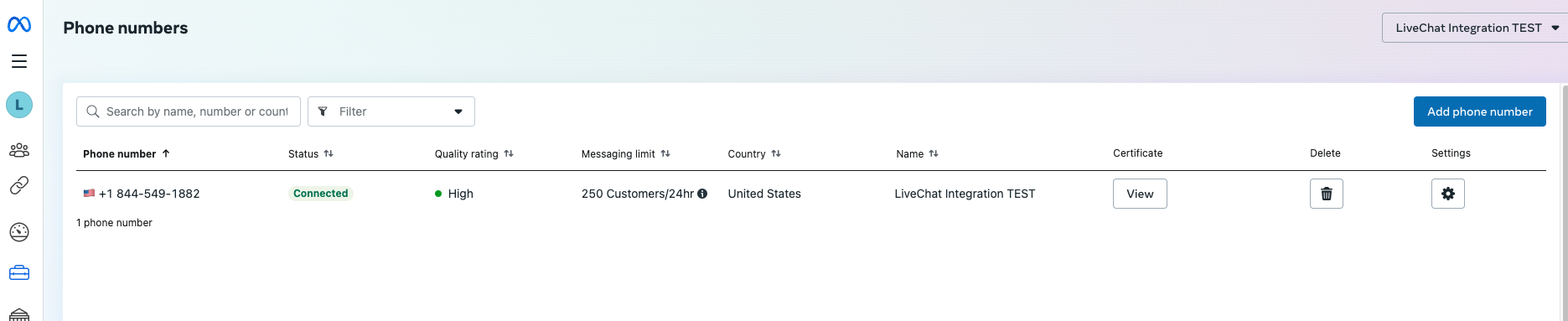
Click the trash icon next to the number, and you'll see a warning about losing access. After clicking Next, enter your Meta password and select a reason for deletion. Click Delete to confirm.
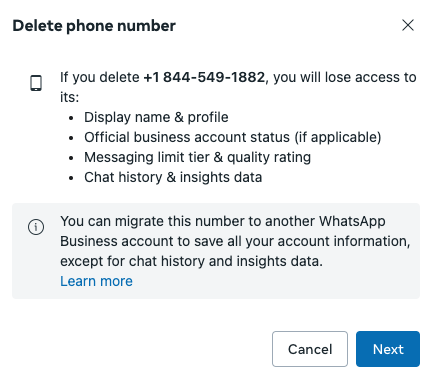
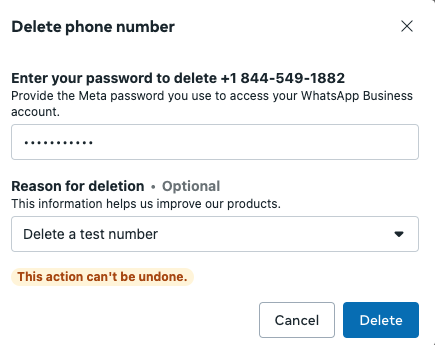
The change will be updated in your Meta Business profile and LiveChat within a few minutes.

Adding the number to a group
Remember to assign the relevant groups to each number for efficient communication. This allows you to assign agents (including bots) to specific numbers, ensuring only the selected group receives messages from that number.
Creating a new group
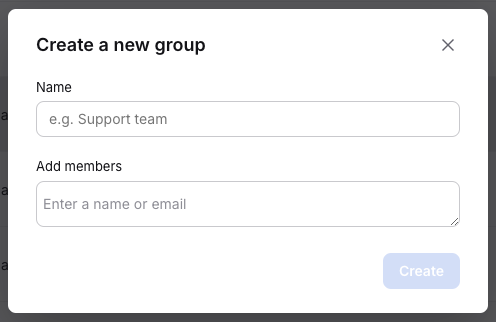
You may need to create a new group. To do this, go to the Groups section under the Team tab and click on the + New group button.
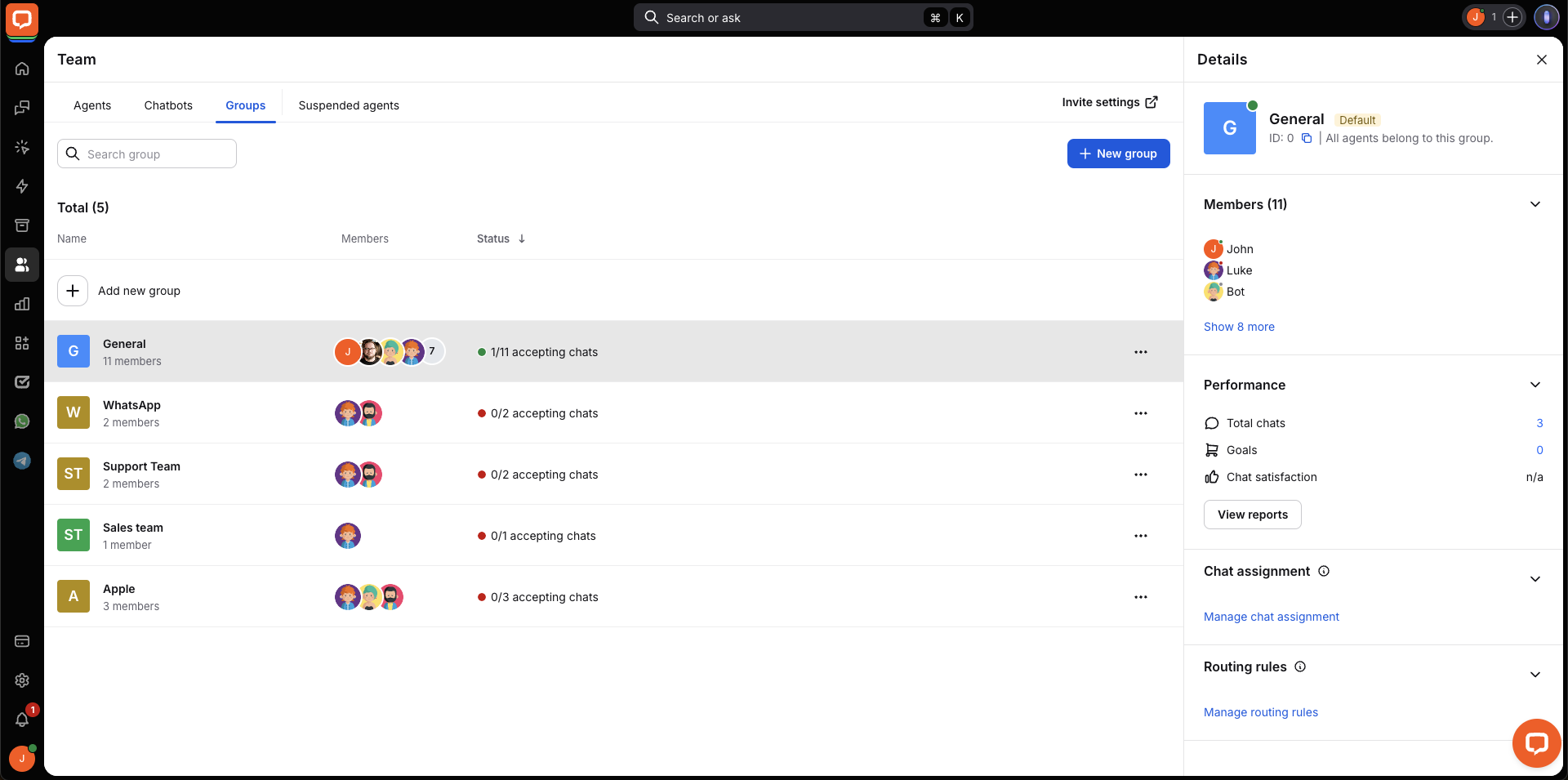
Name it and add agents.
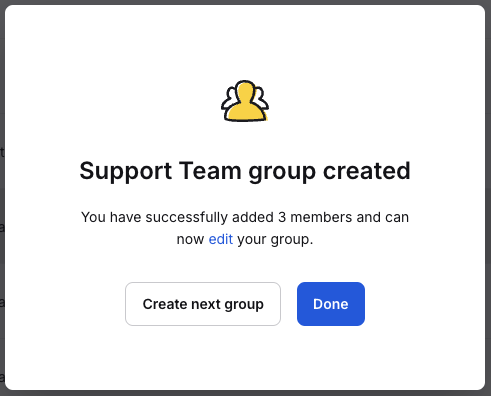
Click Done to finish.
Editing a group
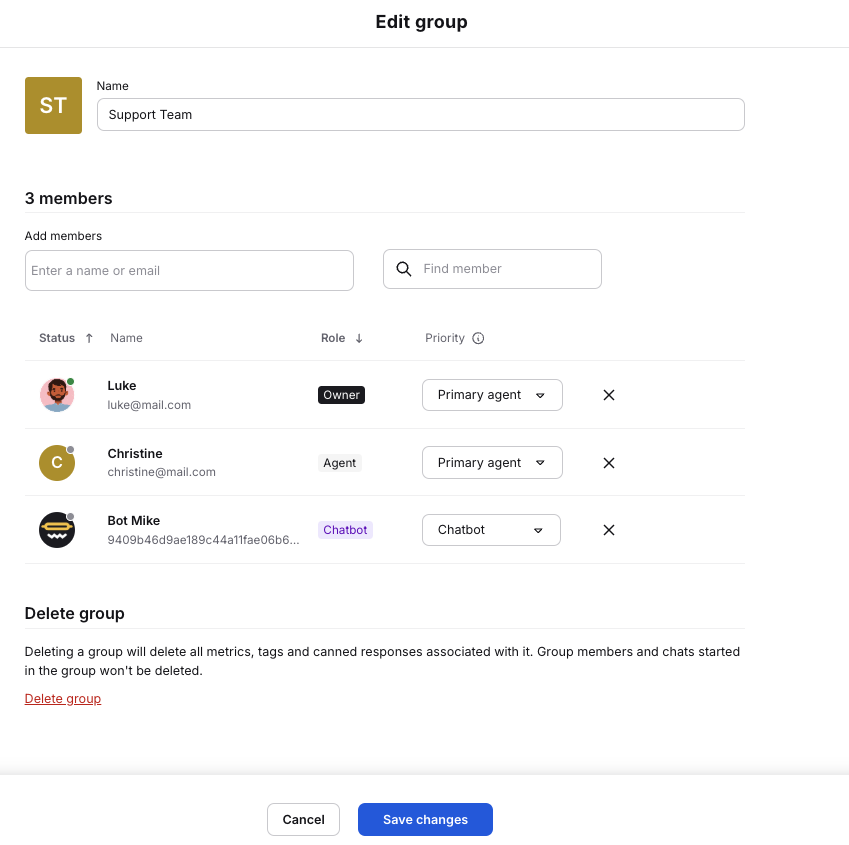
You can edit your groups at any time by clicking the three dots menu next to one of them.

You can change the group name, add or remove members, adjust member priorities, and delete the group. After making changes, two buttons will appear at the bottom of the screen. Click Save changes to finish.
Connecting a number to a group
Go to the Connected numbers tab in the WhatsApp Business dashboard, click on the group name next to a selected number, and choose the one to which you want all messages from this phone to be redirected.